Clone Any Voice in 600+ Languages for Free With OmniVoice and Google Colab
Free AI voice cloning with OmniVoice on a Google Colab GPU: one short clip, 600+ languages, no install. Includes the ready-to-run notebook and step-by-step screenshots.
On this page
Imagine recording one short clip of a voice and then hearing that same voice speak English, Spanish, French, Arabic, Hindi or Japanese. No paid subscription, no powerful computer, nothing to install. That is what this guide does, and you only need a web browser and a free Google account.
We use OmniVoice, an open-source voice cloning model, running on a free GPU from Google Colab. In the video, one 24-second sample voice was turned into six languages in a few minutes.
Consent first. Only clone a voice that is yours, or one you have clear permission to use. The OmniVoice project forbids using it for impersonation or fraud. In the video I use a sample voice just for the demo.
The ready-to-run notebook
Everything below is already written for you in a shared Colab notebook. You only press play buttons.
Open the notebook: PexBell OmniVoice cloning notebook (Google Colab)
How to use this notebook (read this once)
- Open the link and make your own copy. A shared notebook is view-only for you, so click File → Save a copy in Drive. Work in your copy, not the original. You’ll find it in Google Drive under Colab Notebooks.
- Turn on the free GPU (Step 1 below). The notebook needs a GPU to run quickly.
- Run the cells in order, top to bottom: Step 1 (install), Step 2 (load the model), Step 3 (upload your voice), then Step 4 (generate).
- To run a cell, click the play button on its left. Wait until it finishes before running the next one. A spinning icon means it is still working.
- To make it say something new, edit the text between the three quote marks (
""") in a Step 4 cell, then run that cell again. - Download what you like before you close the tab. Colab files are temporary and disappear when the session ends (see “Download your voices” below).
- If you come back later, the session may have timed out. Reconnect the GPU and run Steps 1 to 3 again before Step 4.
What you need
- A free Google account
- A reference clip of the voice, 10 to 30 seconds, as a
.wav,.mp3or.flacfile - About 10 minutes the first time
Prepare a good reference clip
The quality of your clone depends mostly on this clip. Four simple rules:
| Rule | Why |
|---|---|
| 10 to 30 seconds long | Long enough to capture the voice, short enough to stay fast. The sample in the video is 24 seconds. |
| Clean audio | No music, echo or background noise |
| One person speaking | A natural voice, not shouting or whispering |
.wav, .mp3 or .flac |
The formats the notebook accepts |
Step 0: Turn on the free GPU
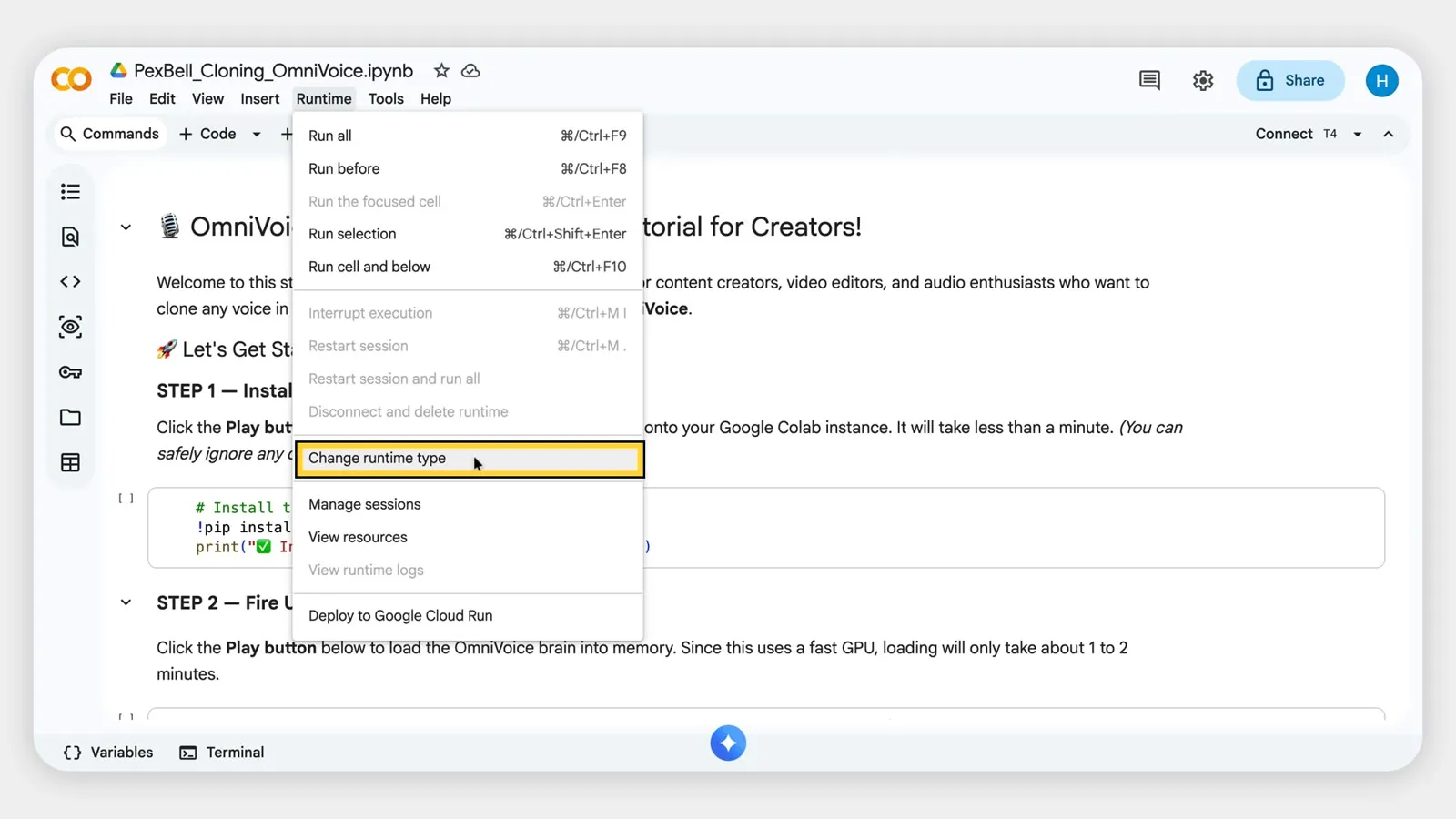
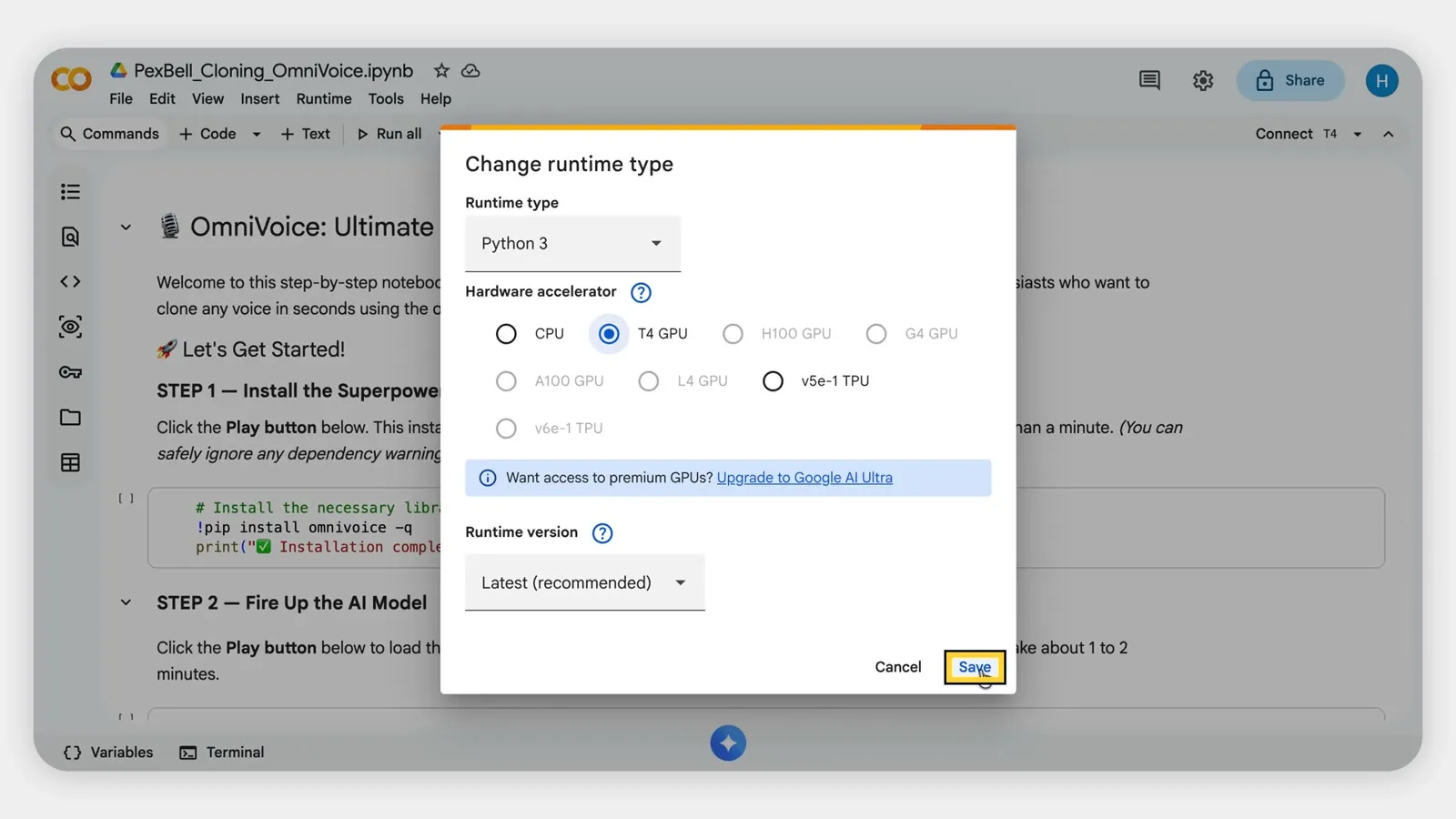
Open the notebook copy and click Runtime → Change runtime type.
Choose T4 GPU. If CPU is selected, change it, because the CPU works but is much slower.
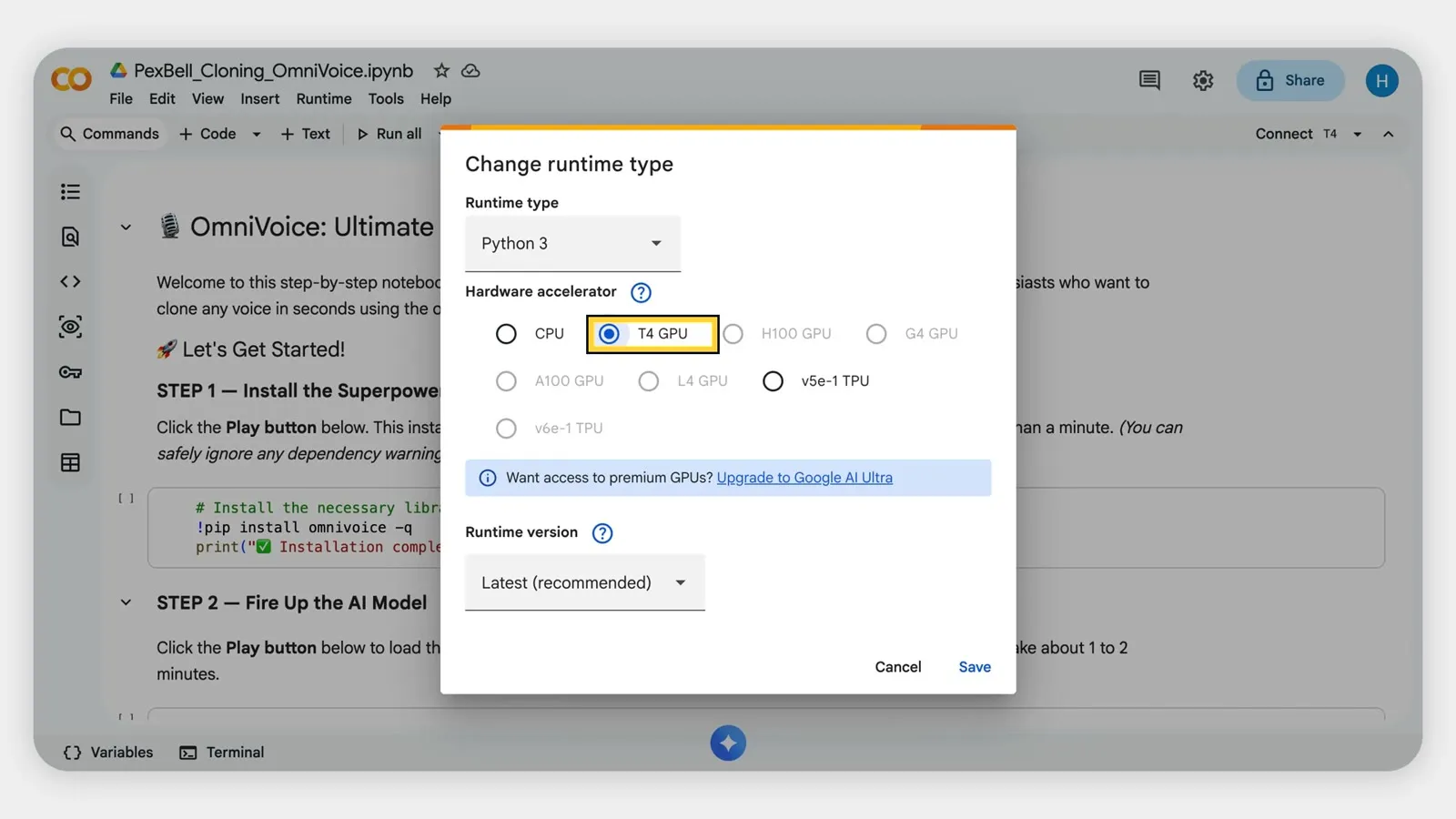
Click Save.
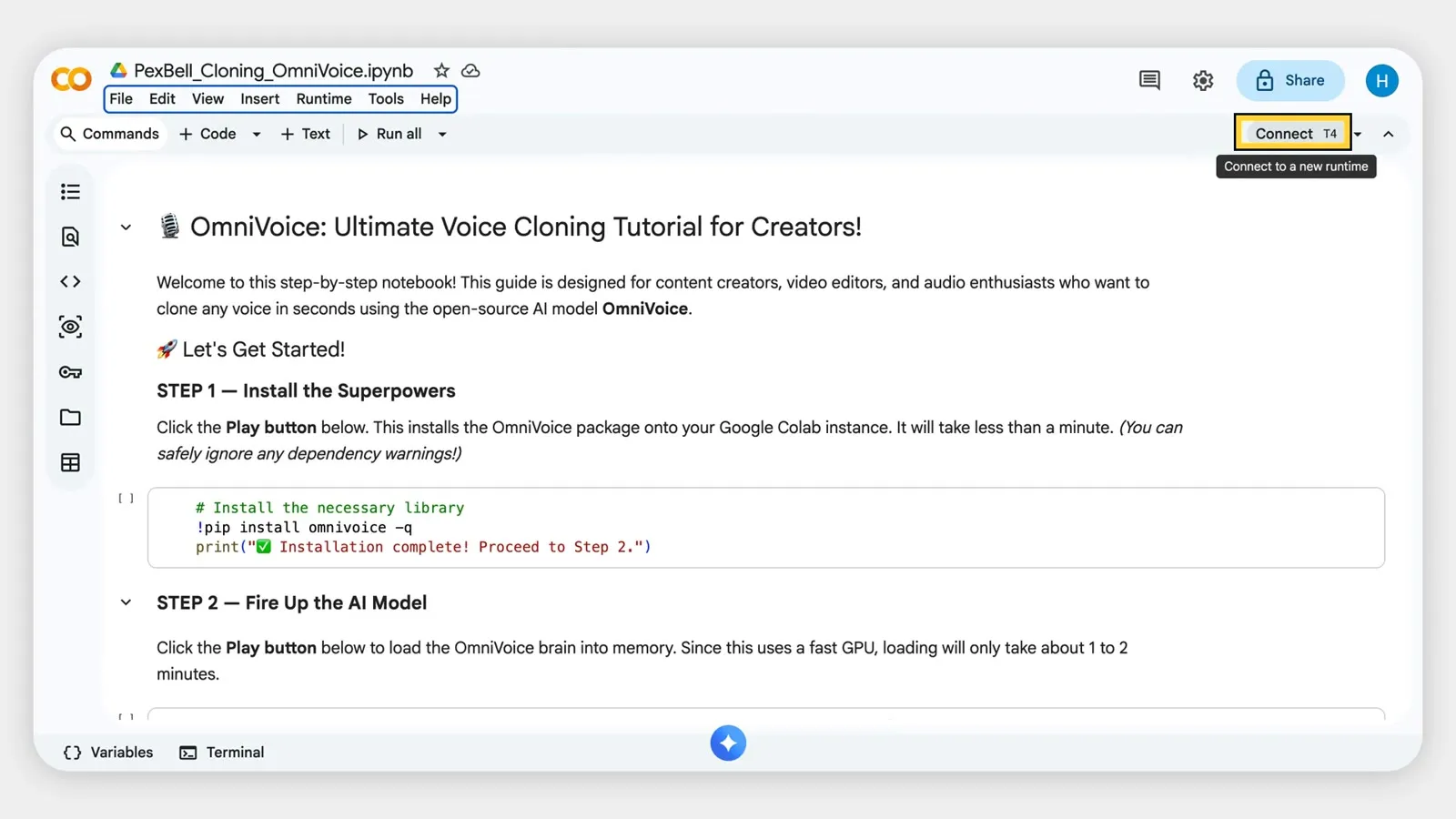
Now click Connect (top right). After a few seconds a green tick appears, which means Google has given you a computer with a GPU.
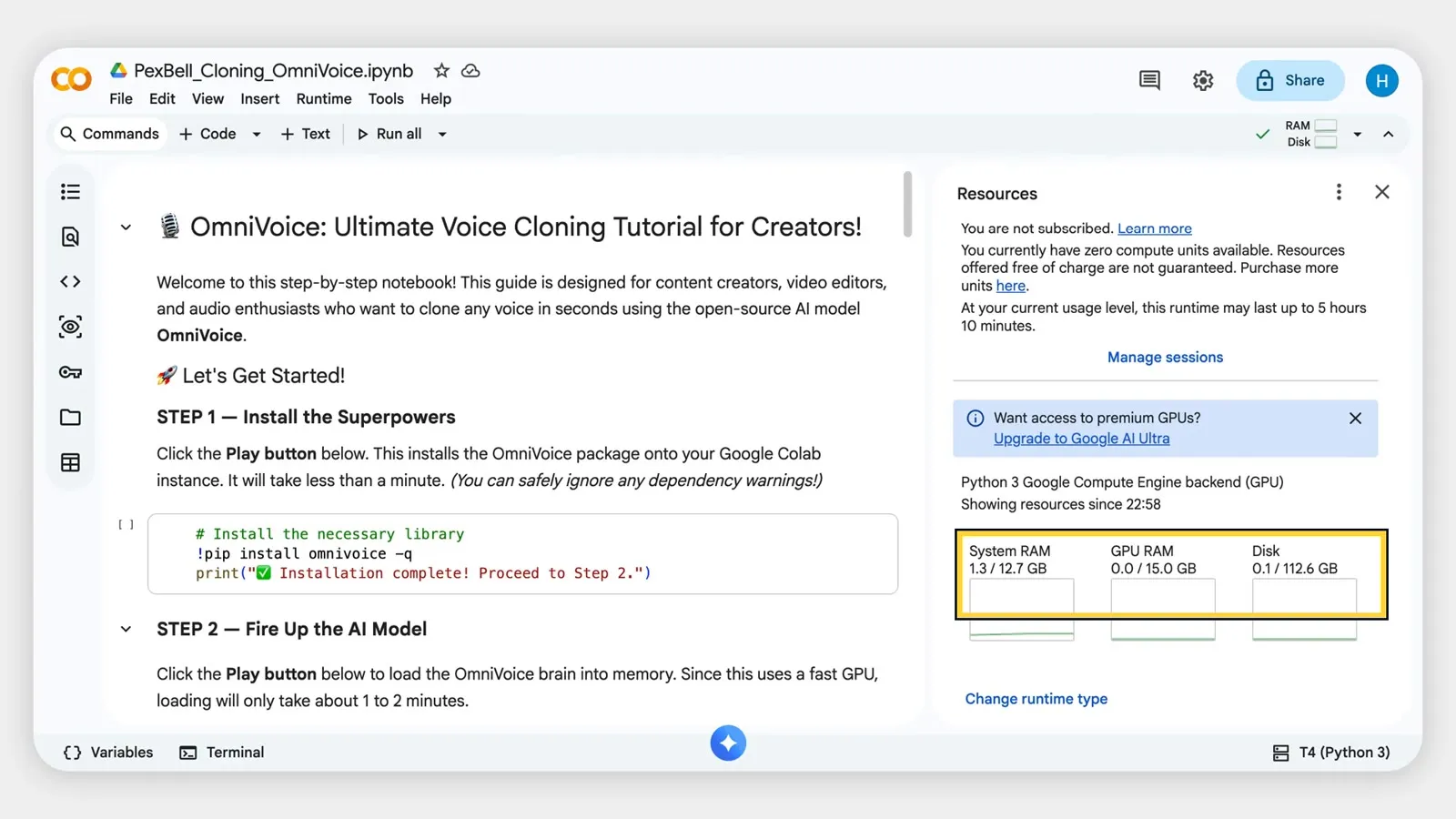
If you open the resources panel you will see roughly 12 GB of RAM, 15 GB of GPU memory and plenty of disk space, all free.
Step 1: Install OmniVoice
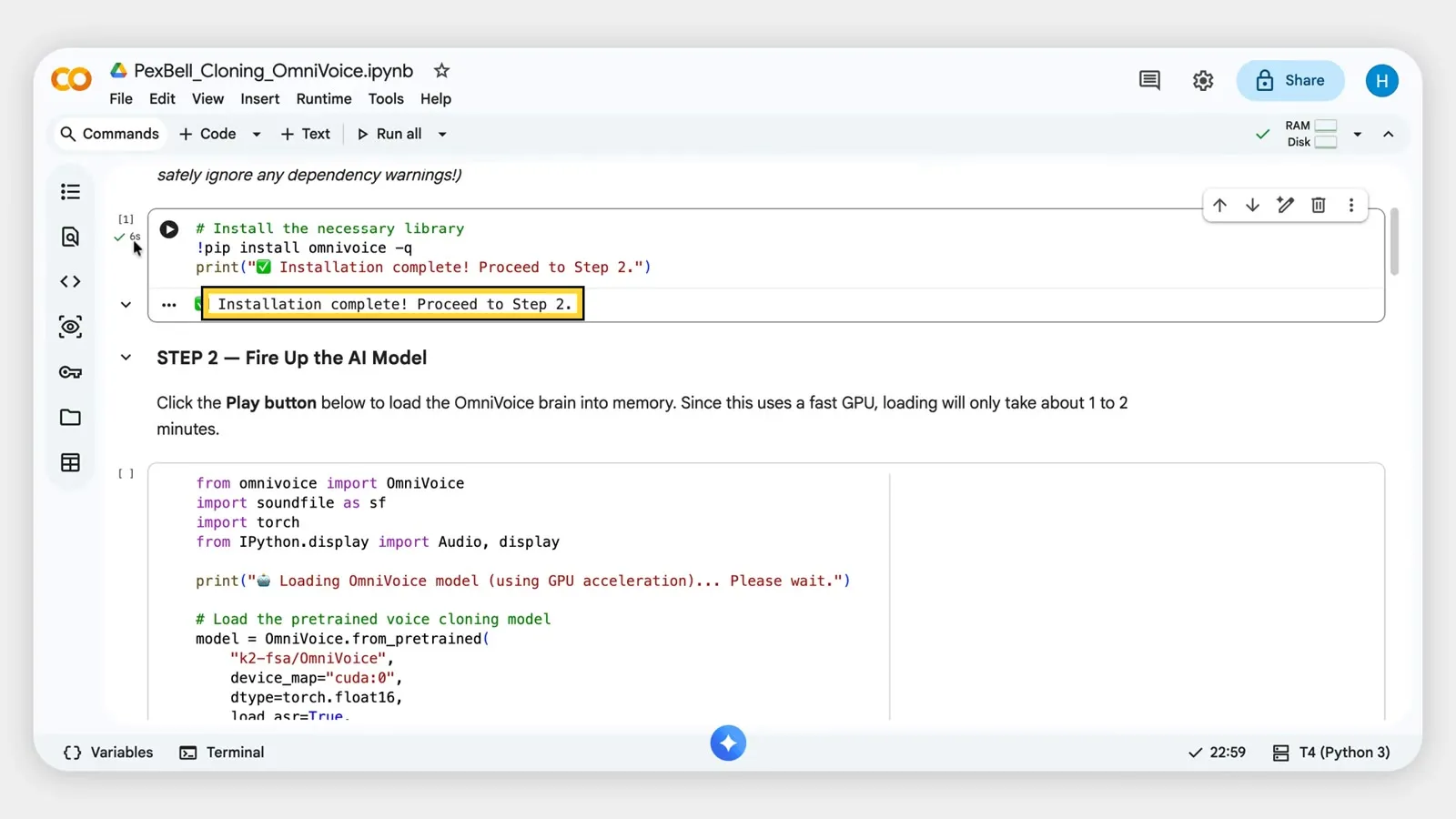
Click the play button on the first cell. It installs the OmniVoice package and took about 6 seconds for me.
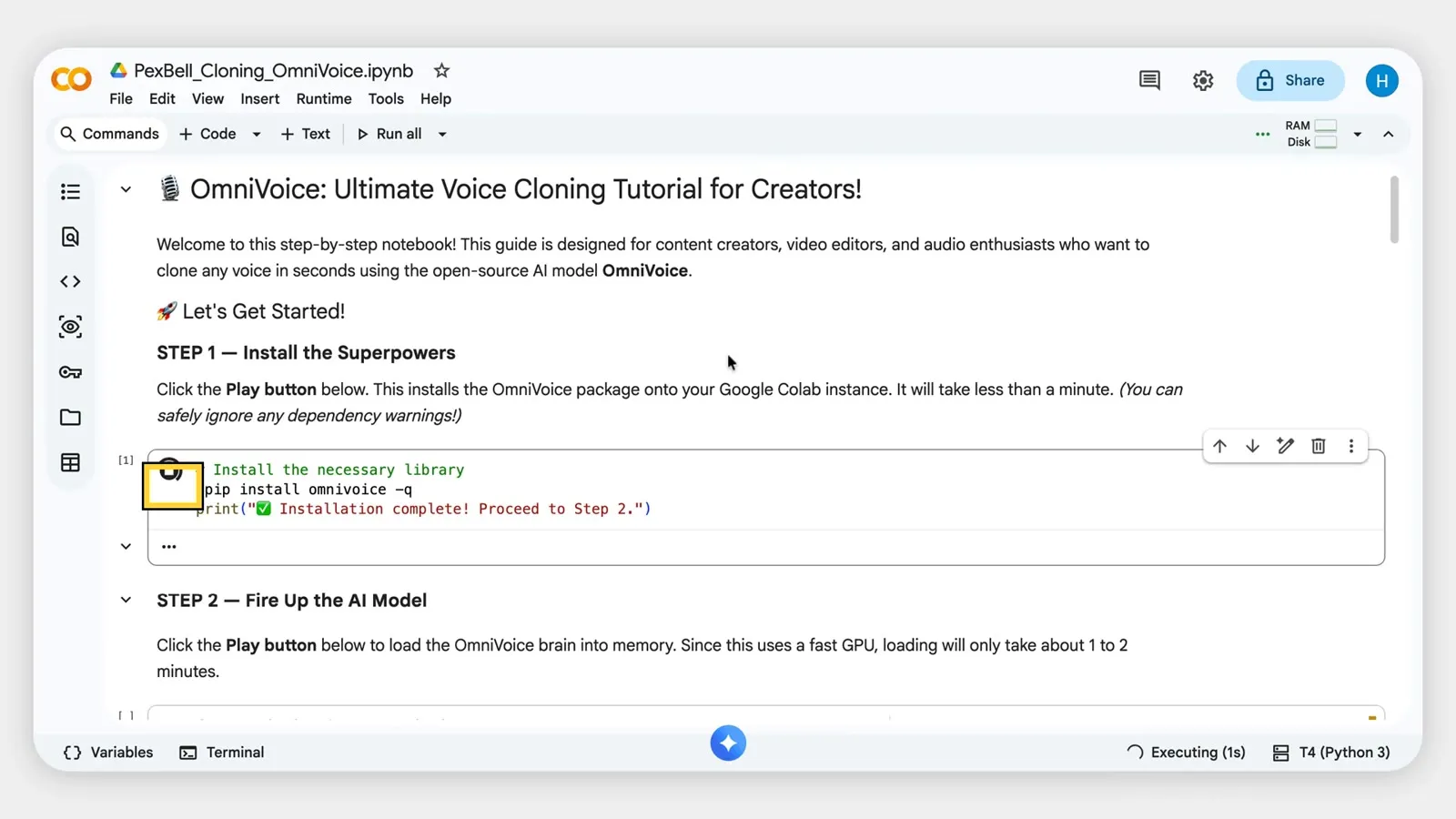
!pip install omnivoice -q
print("✅ Installation complete! Proceed to Step 2.")
When you see “Installation complete”, move on. Yellow warnings are normal and can be ignored.
Step 2: Load the model
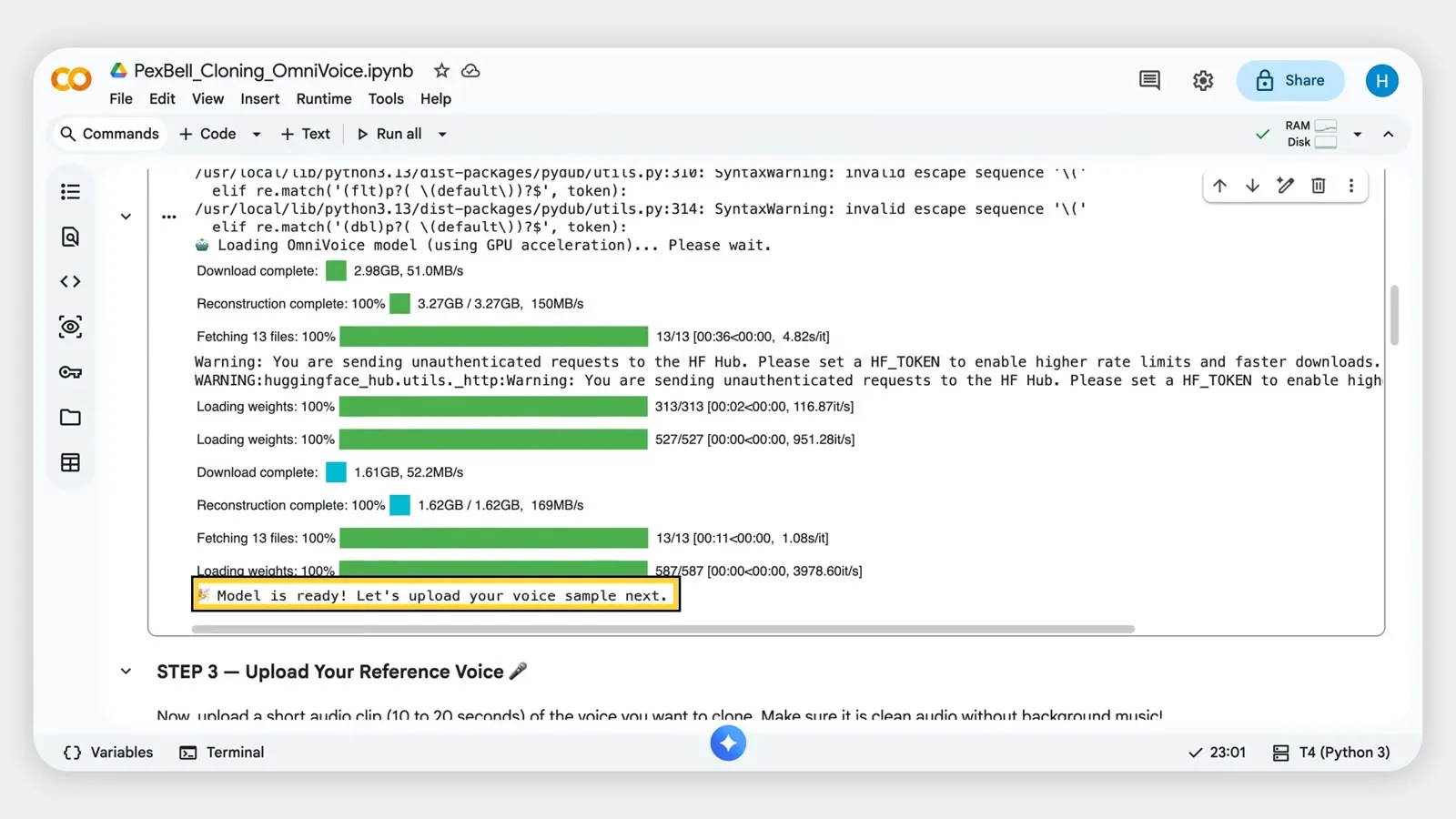
Click play on the second cell. It downloads the model (about 13 files, a little over 3 GB) and loads it onto the GPU. This takes around a minute, and only once per session.
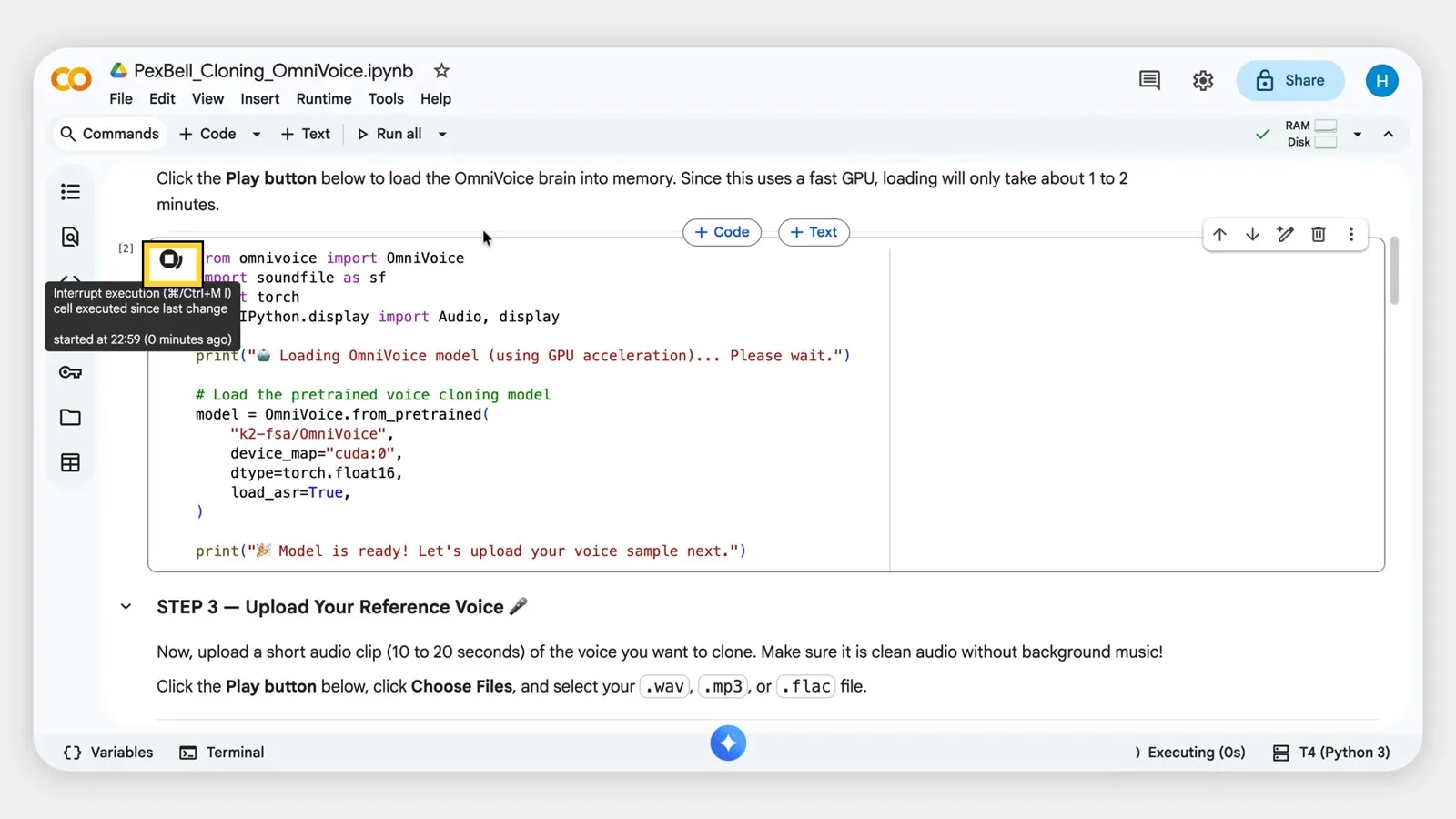
from omnivoice import OmniVoice
import soundfile as sf
import torch
from IPython.display import Audio, display

print("🎙️ Loading OmniVoice model (using GPU acceleration)... Please wait.")

model = OmniVoice.from_pretrained(
    "k2-fsa/OmniVoice",
    device_map="cuda:0",
    dtype=torch.float16,
    load_asr=True,
)
print("🎉 Model is ready! Let's upload your voice sample next.")
Wait until you see “Model is ready!”
Step 3: Upload your reference voice
Run the third cell, then click Choose Files and pick your clip.
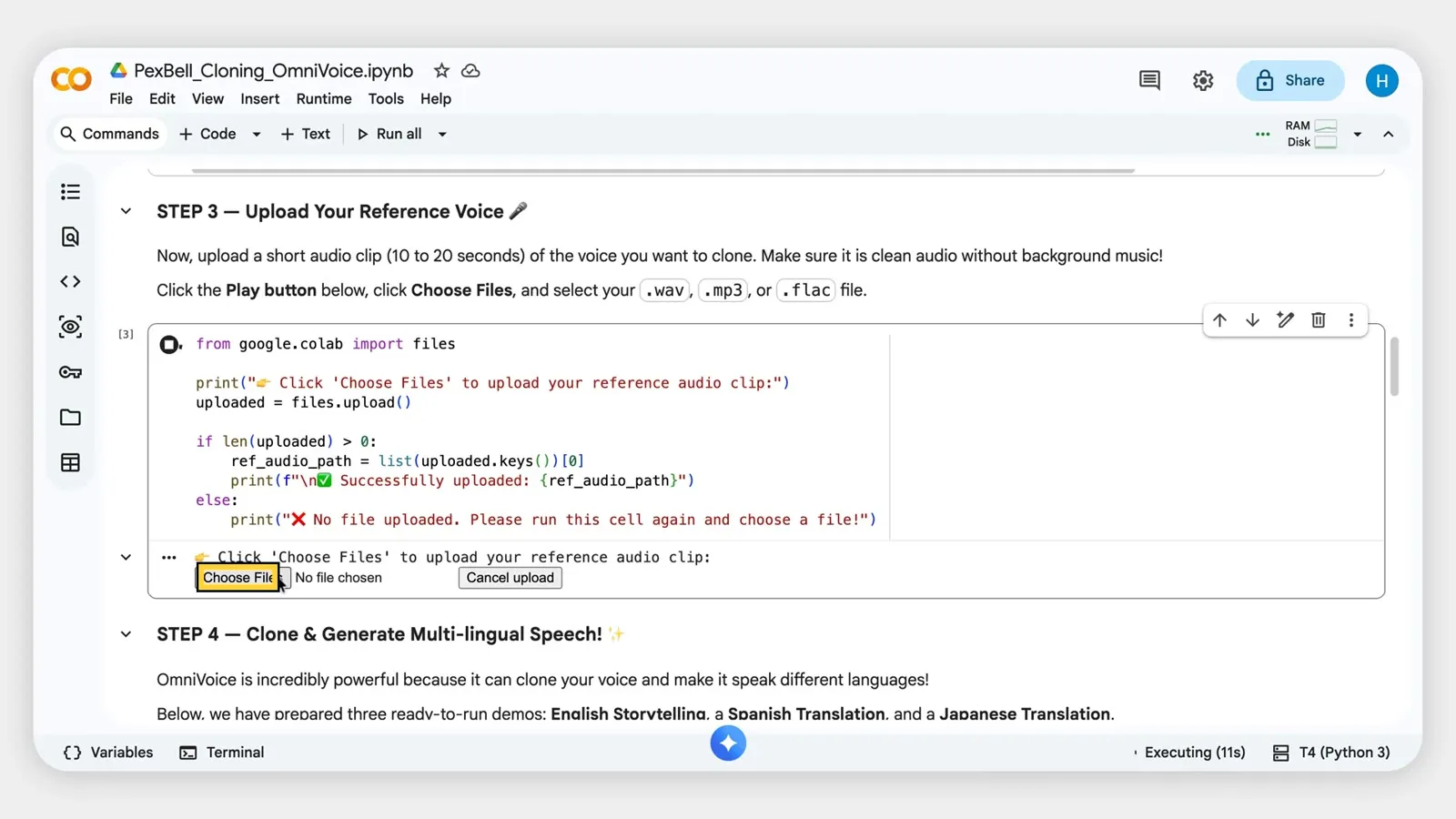
When the upload finishes you’ll see “Successfully uploaded” with your file name.
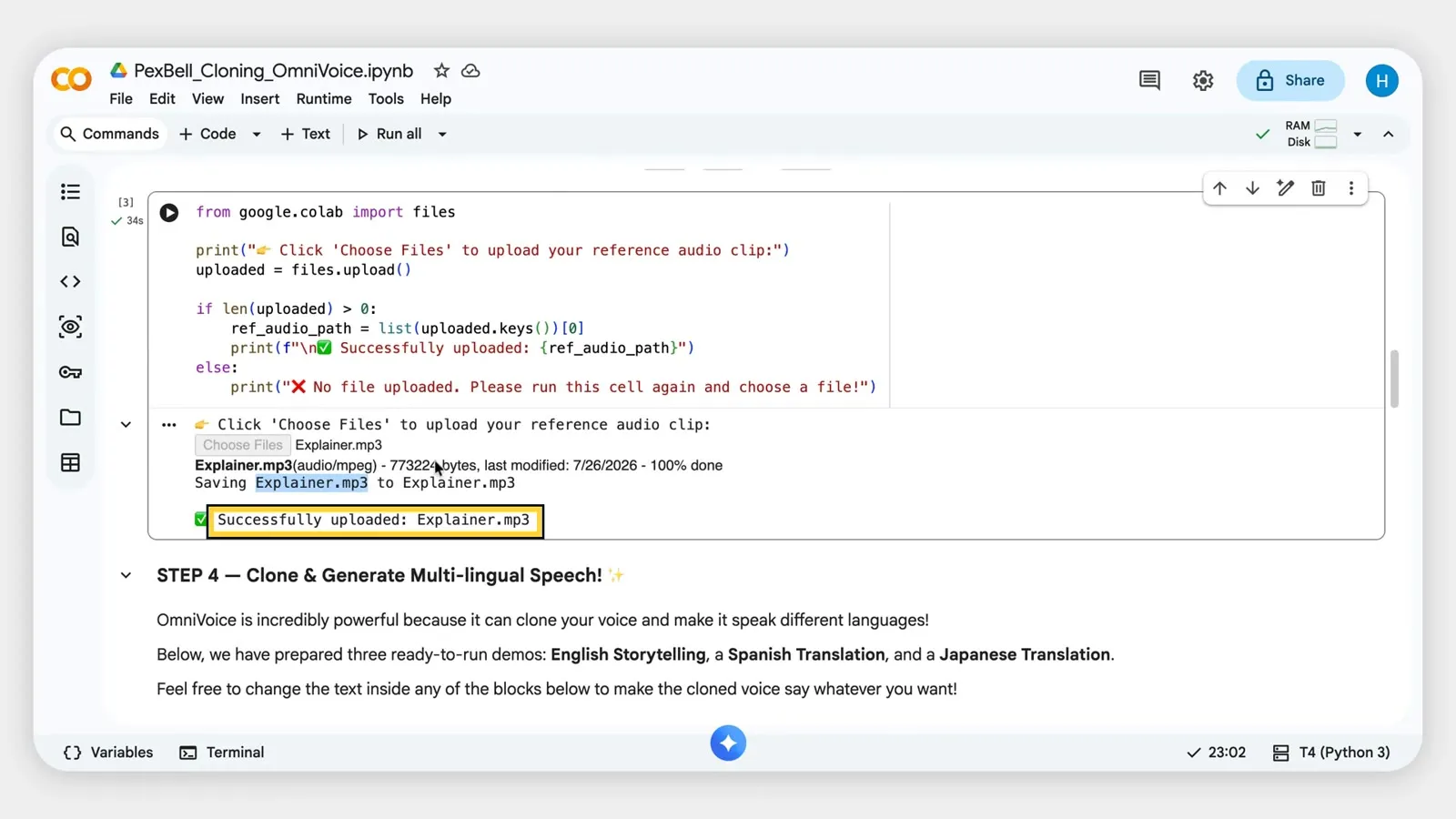
from google.colab import files

print("📁 Click 'Choose Files' to upload your reference audio clip:")
uploaded = files.upload()

if len(uploaded) > 0:
    ref_audio_path = list(uploaded.keys())[0]
    print(f"\n✅ Successfully uploaded: {ref_audio_path}")
else:
    print("❌ No file uploaded. Please run this cell again and choose a file!")
Step 4: Generate speech in your cloned voice
Step 4 has ready-made demos for English, Spanish, French, Arabic, Hindi and Japanese. Each one has a block of text between triple quotes. That text is what the voice will say. Replace it with your own and run the cell.
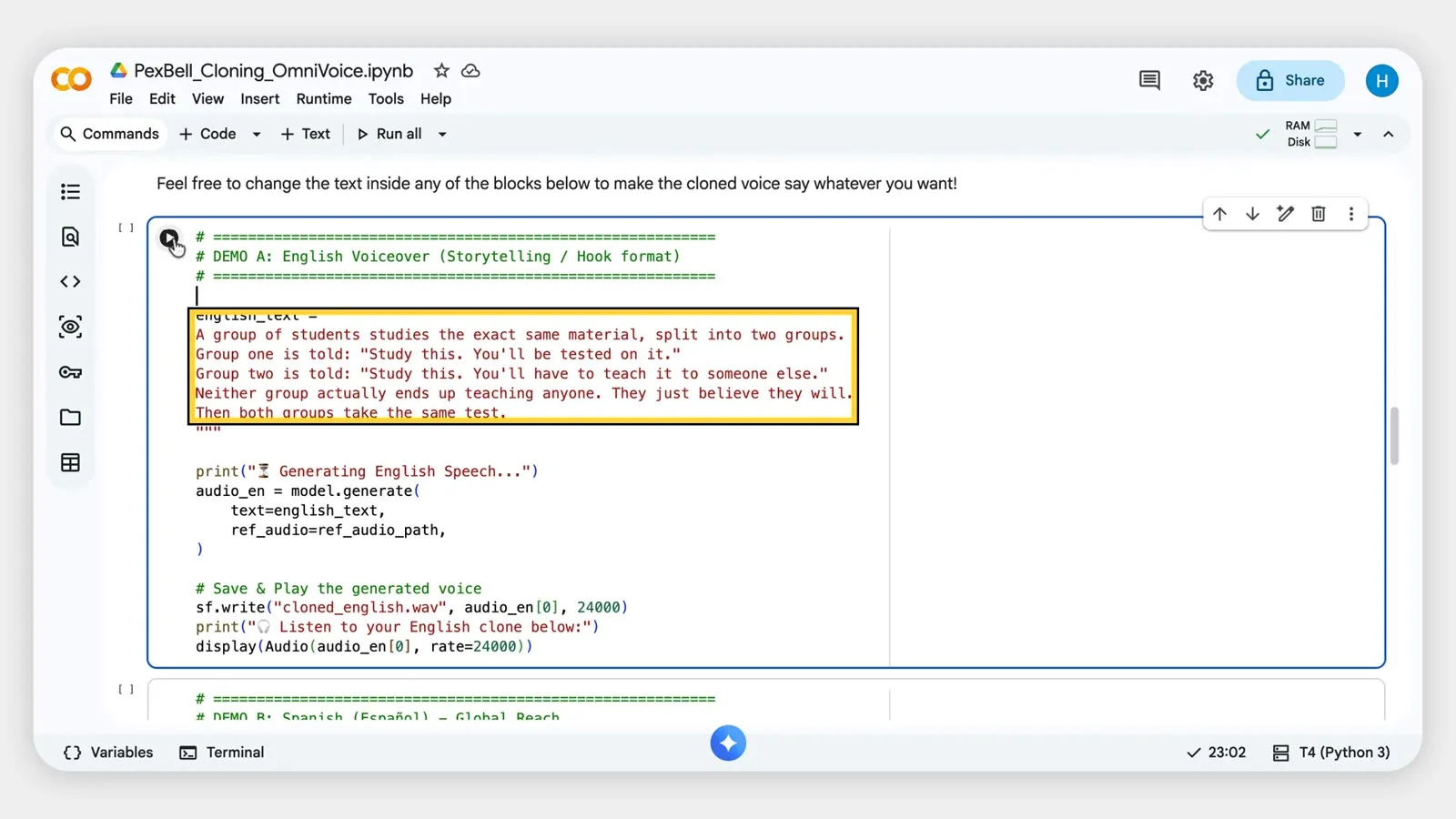
Each demo follows the same pattern:
english_text = """
Welcome to PexBell, this is your own channel. Thanks for watching the tutorial.
"""

print("⏳ Generating English Speech...")
audio_en = model.generate(
    text=english_text,
    ref_audio=ref_audio_path,
)

sf.write("cloned_english.wav", audio_en[0], 24000)
print("🎧 Listen to your English clone below:")
display(Audio(audio_en[0], rate=24000))
The result appears right under the cell with a play button, and the file is saved as cloned_english.wav.
The same voice in other languages
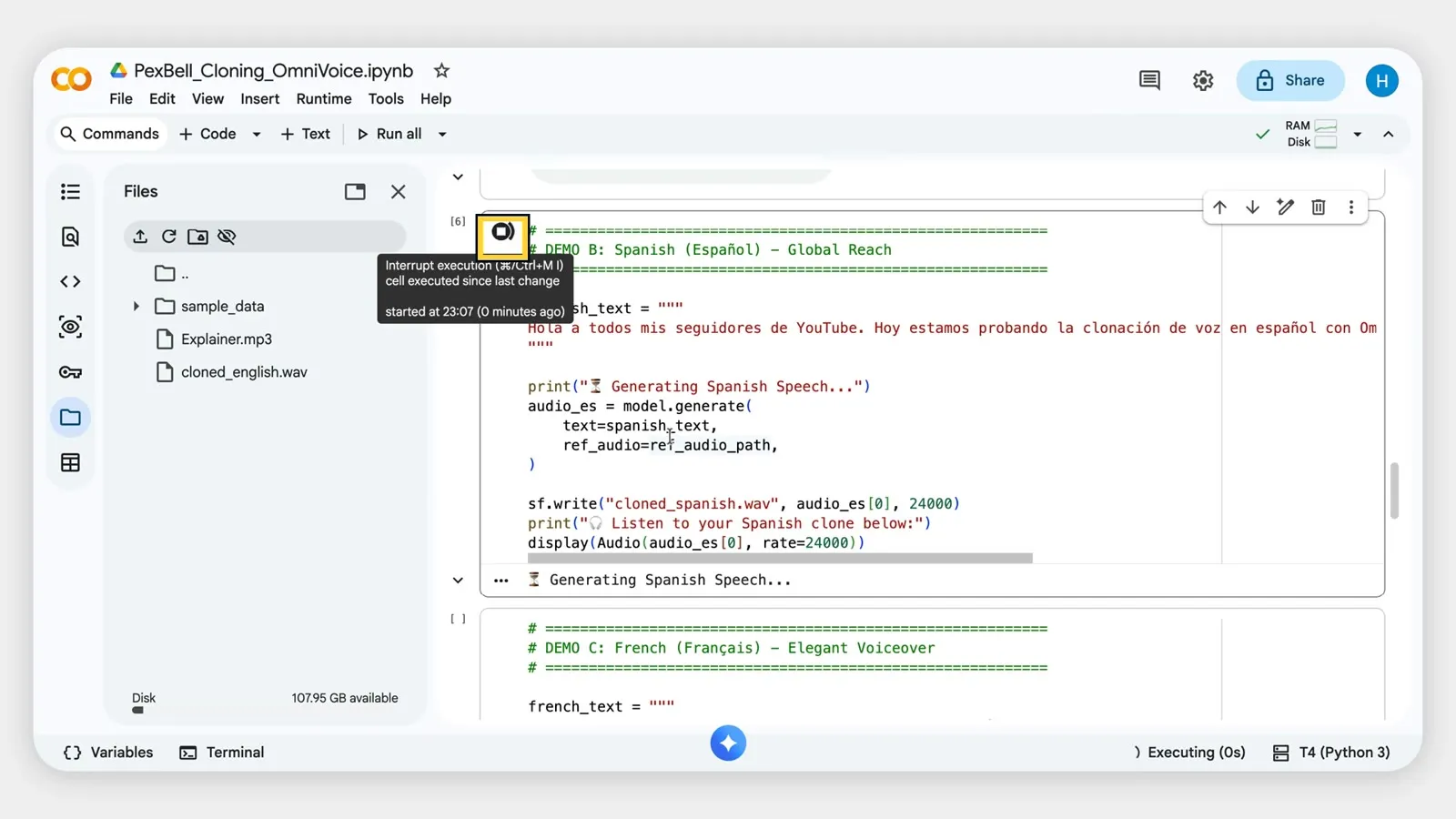
Run the Spanish, French, Arabic, Hindi and Japanese cells the same way. You don’t tell the model the language; it detects it from your text. In my test, a 9-second French clip took about 6 seconds to generate.
| Demo | Language | Saved as |
|---|---|---|
| A | English | cloned_english.wav |
| B | Spanish | cloned_spanish.wav |
| C | French | cloned_french.wav |
| D | Arabic | cloned_arabic.wav |
| E | Hindi | cloned_hindi.wav |
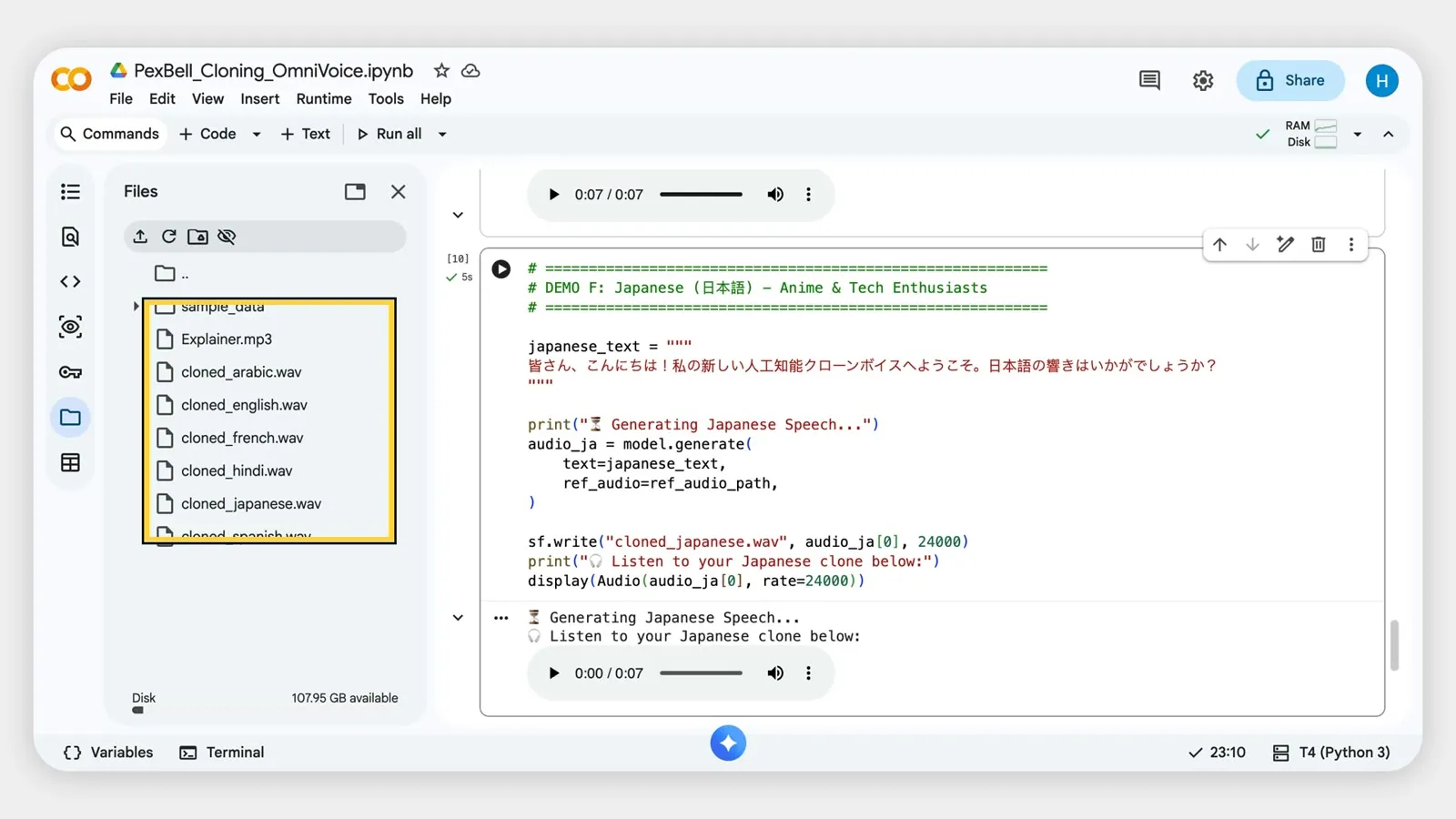
| F | Japanese | cloned_japanese.wav |
Accent tip: the clone keeps the accent of your reference clip. A reference recorded in English will give an English-accented Arabic or Hindi. For a native-sounding result, use a reference clip recorded by a speaker with that accent.
OmniVoice supports more than 600 languages. The full list is in the project’s docs/languages.md on GitHub.
Download your voices
Colab deletes files when your session ends, so save what you want.
- From the player: click the three dots on the audio player and choose Download.
- From the Files panel: open the folder icon on the left, click the three dots next to the file, then Download.
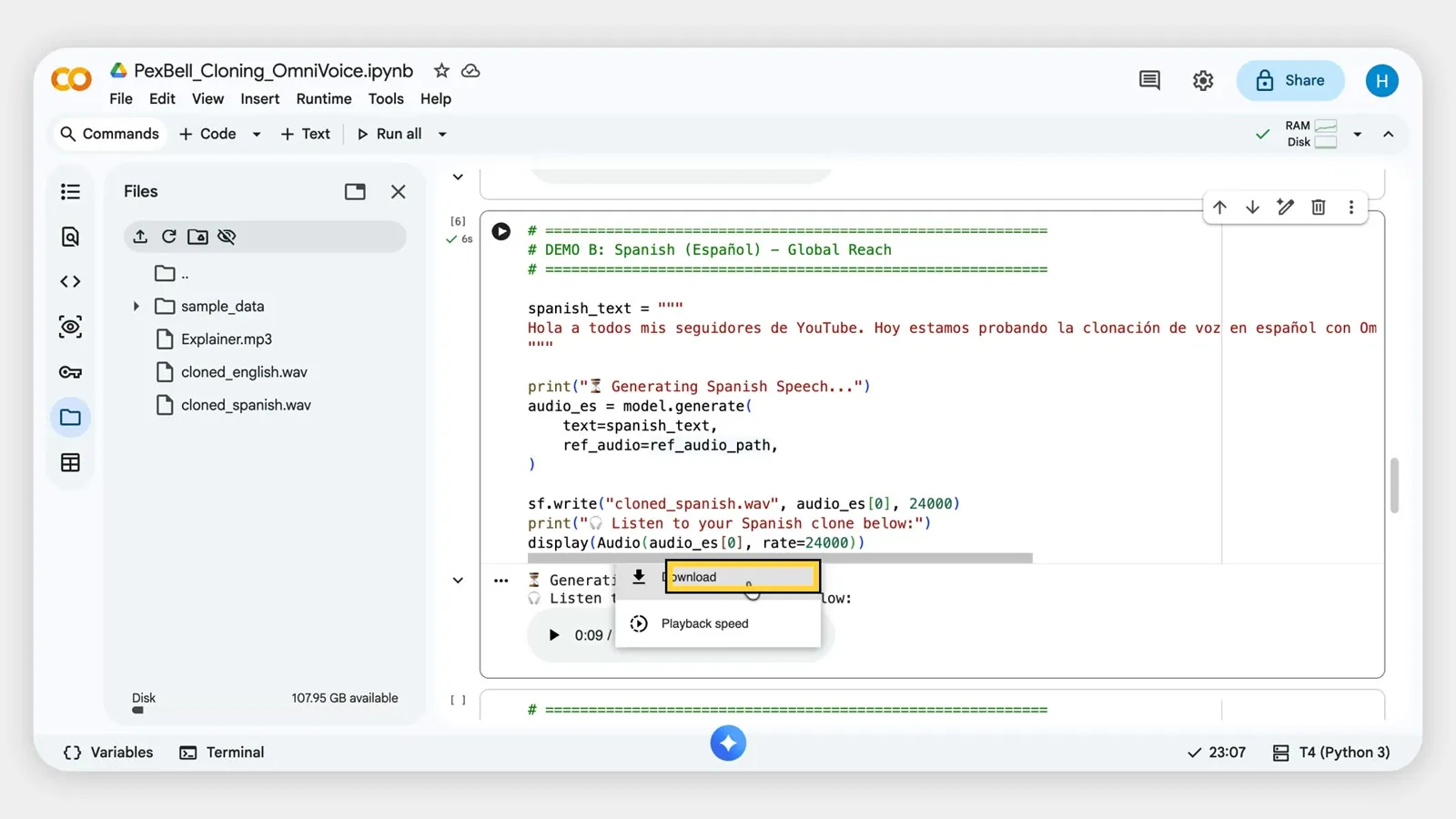
After running all six demos, the Files panel shows all your cloned voices:
Extra tips
These come from the OmniVoice documentation; they are not part of the demo cells, so you’d add them yourself.
- Reference text: if you also give the text your reference clip says, the clone can be more accurate. If you leave it out, the tool transcribes the clip automatically.
- Speed: a
speedsetting makes the voice faster or slower. - Expression: you can add tags such as
[laughter]or[sigh]inside your text. - Quality vs speed: a higher step count (
num_step) gives better quality but takes longer. - Voice Design: you can also create a voice just by describing it, for example “female, low pitch, British accent”, with no reference clip. That is the topic of the next video.
Troubleshooting
| Problem | Fix |
|---|---|
| Voice sounds noisy or robotic | Use a cleaner 10 to 30 second reference with no music or echo |
| Wrong accent | Use a reference recorded in the accent you want |
| Very slow, or “no GPU” error | Runtime → Change runtime type → T4 GPU, then reconnect and re-run Steps 1 and 2 |
| Error after a long break | The Colab session timed out. Reconnect and re-run Steps 1 to 4 |
| “GPU limit reached” | The free GPU has a usage limit. Try again later |
| Upload cell did nothing | Run the cell again and click Choose Files |
| “Cannot save” or can’t edit | You’re in the shared copy. Use File → Save a copy in Drive |
Frequently asked questions
Is it really free? Yes: Colab’s free GPU, the open-source model, and this notebook cost nothing. Free GPU time is limited and varies by account.
Can I use the voices commercially? OmniVoice is released under the Apache-2.0 license, which allows commercial use of the software. Your rights over a specific person’s voice are a separate matter: you need that person’s permission.
Do I need to know Python? No. You only press play and edit the text between the quote marks.
Why 600+ languages? OmniVoice was trained for very broad language coverage. Quality varies by language, so always listen to the result.
Credits and links
- Model: k2-fsa/OmniVoice on GitHub (Apache-2.0)
- Paper: OmniVoice: Towards Omnilingual Zero-Shot Text-to-Speech with Diffusion Language Models, arXiv:2604.00688
- Notebook: open in Google Colab
Next in the series: OmniVoice Voice Design, creating a brand-new voice from a written description.