12 Free Script Writing Tools for YouTubers (Hemingway, Trends & More)
12 free tools to find a video idea, research it, polish your script and practise it, from Google Trends and Hemingway Editor to a free online teleprompter.
On this page
A good video starts long before you hit record. You need an idea people are searching for, facts you can trust, and a script that sounds natural when you say it out loud.
Here are 12 free tools for the four steps of that job: find an idea, research it, write the script, and deliver it. Everything below worked in a normal browser without signing in. A few have paid extras, and we point those out so there are no surprises.
At a glance
| # | Tool | Step | Used without signing in? | Good to know |
|---|---|---|---|---|
| 1 | Google Trends | Find ideas | Yes | Filter by country, time and category |
| 2 | Wikipedia Pageviews | Find ideas | Yes | Compare pages over time |
| 3 | Hacker News | Find ideas | Yes | Comment threads show real questions |
| 4 | Perplexity | Research | Yes | A sign-in prompt keeps showing; check the sources |
| 5 | Google Scholar | Research | Yes | Cite button and Cited by counts |
| 6 | Wikipedia | Research | Yes | Follow the footnotes to the originals |
| 7 | Hemingway Editor | Write | Yes | Fix Grammar and Rewrite are paid (Plus) |
| 8 | LanguageTool | Write | Yes | A free account is optional |
| 9 | WordCounter | Write | Yes | Shows speaking time |
| 10 | Thesaurus.com | Write | Yes | The site shows ads |
| 11 | Title Case Converter | Write | Yes | AP, APA, Chicago, MLA and more |
| 12 | CuePrompter | Deliver | Yes | Mirror mode for a teleprompter setup |
Step 1: Find your idea
1. Google Trends
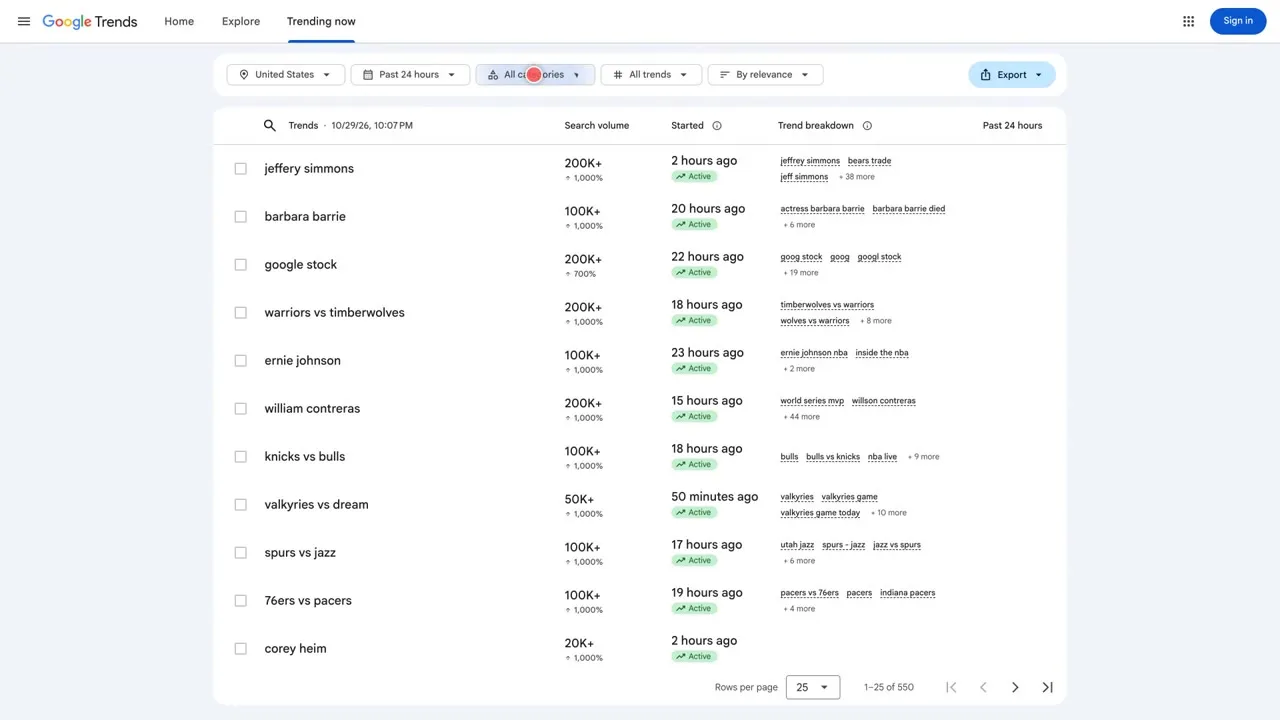
Open the Trending now page to see what people are searching for right now. Each topic shows its search volume, when it started and related queries, and you can filter by country, time window and category. No sign-in is needed to browse it. It is a quick way to catch a topic while it is rising.
Link: trends.google.com/trends/trending
2. Wikipedia Pageviews
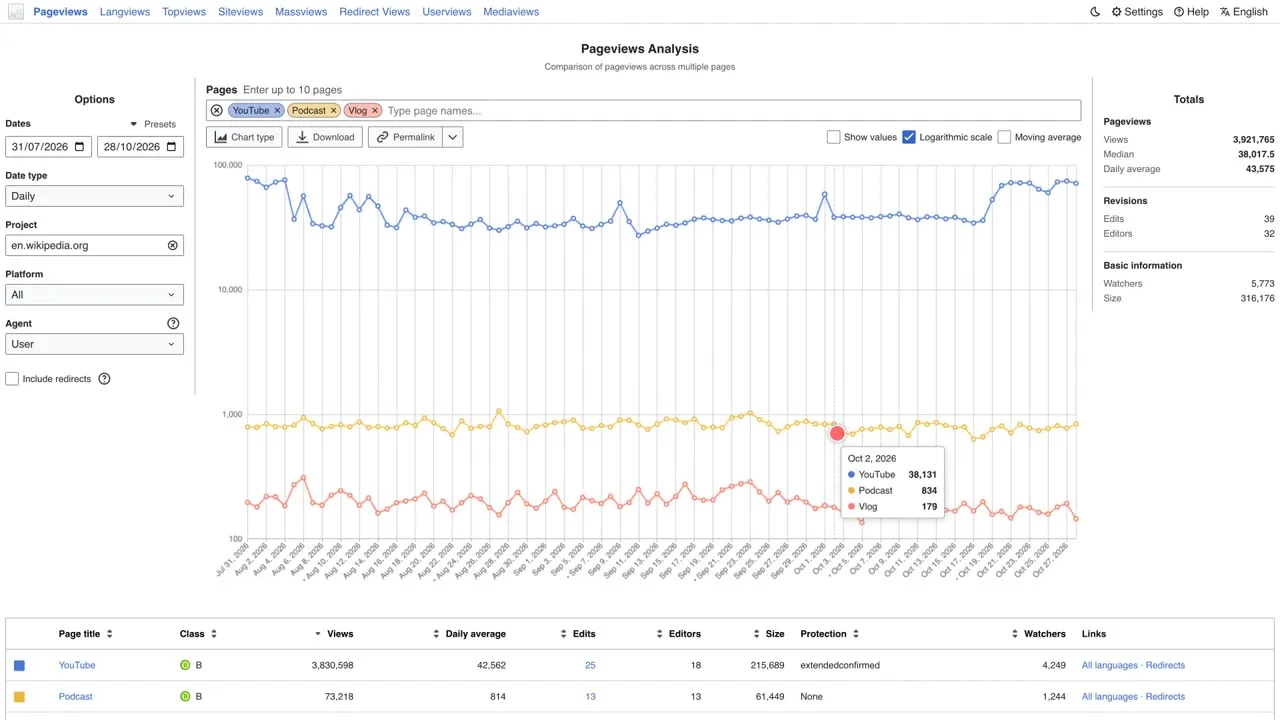
Compares how many people read different Wikipedia pages over time. We entered YouTube, Podcast and Vlog, picked the last 90 days, and got one chart plus a table with total views and the daily average for each page. Use it to see which of your topics people actually look up.
Link: pageviews.wmcloud.org
3. Hacker News
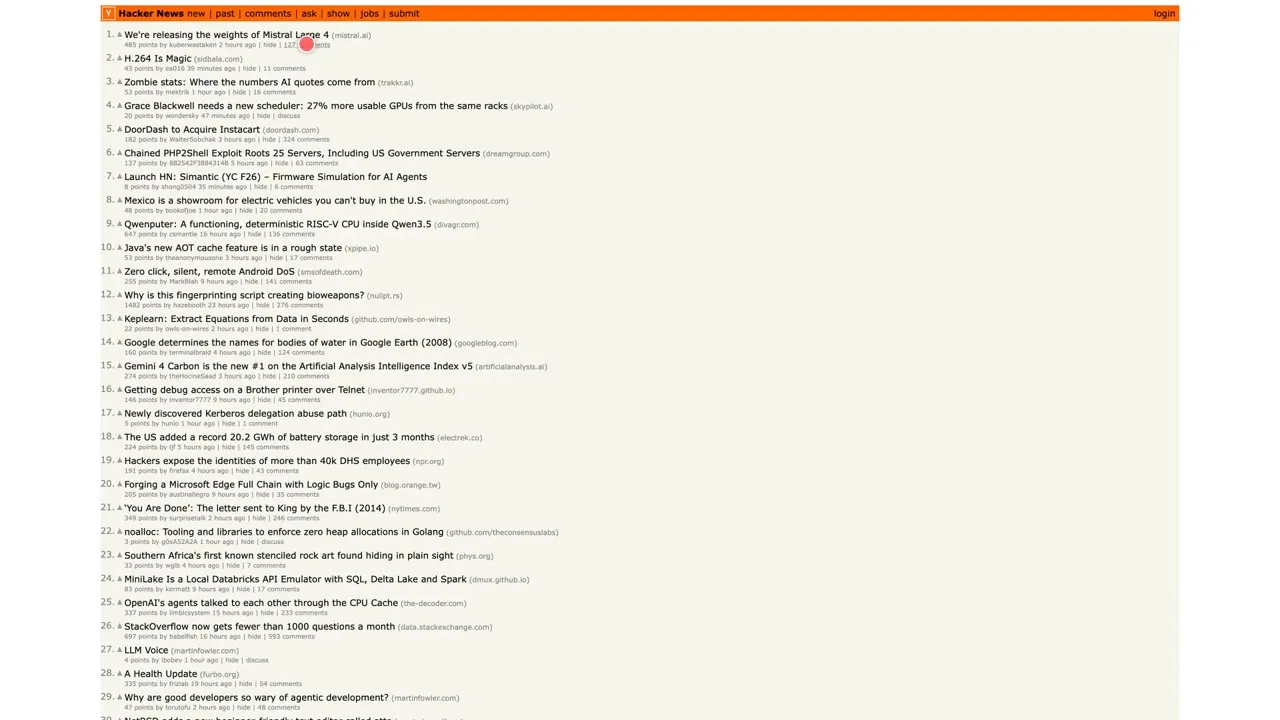
A plain list of links ranked by points, with a comment link under each story. You can read it without an account. The comment threads are the real treasure: you can see what people ask, argue about and misunderstand. Those questions make strong video topics, especially for tech channels.
Link: news.ycombinator.com
Step 2: Research it
4. Perplexity
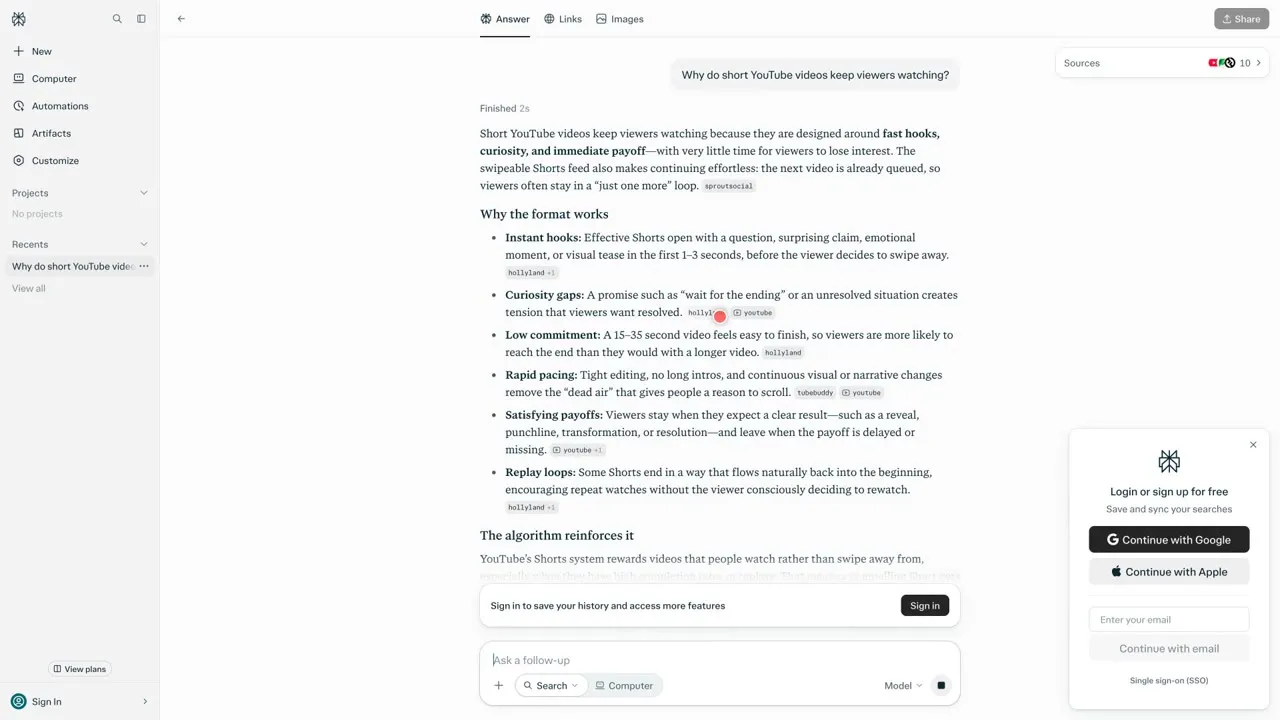
Ask a question and it writes an answer with source labels next to the claims. We asked why short YouTube videos keep viewers watching, and it answered without a login, although it keeps showing a sign-in prompt. Treat it as a starting point: open the sources and check them before anything goes in your script.
Link: perplexity.ai
5. Google Scholar
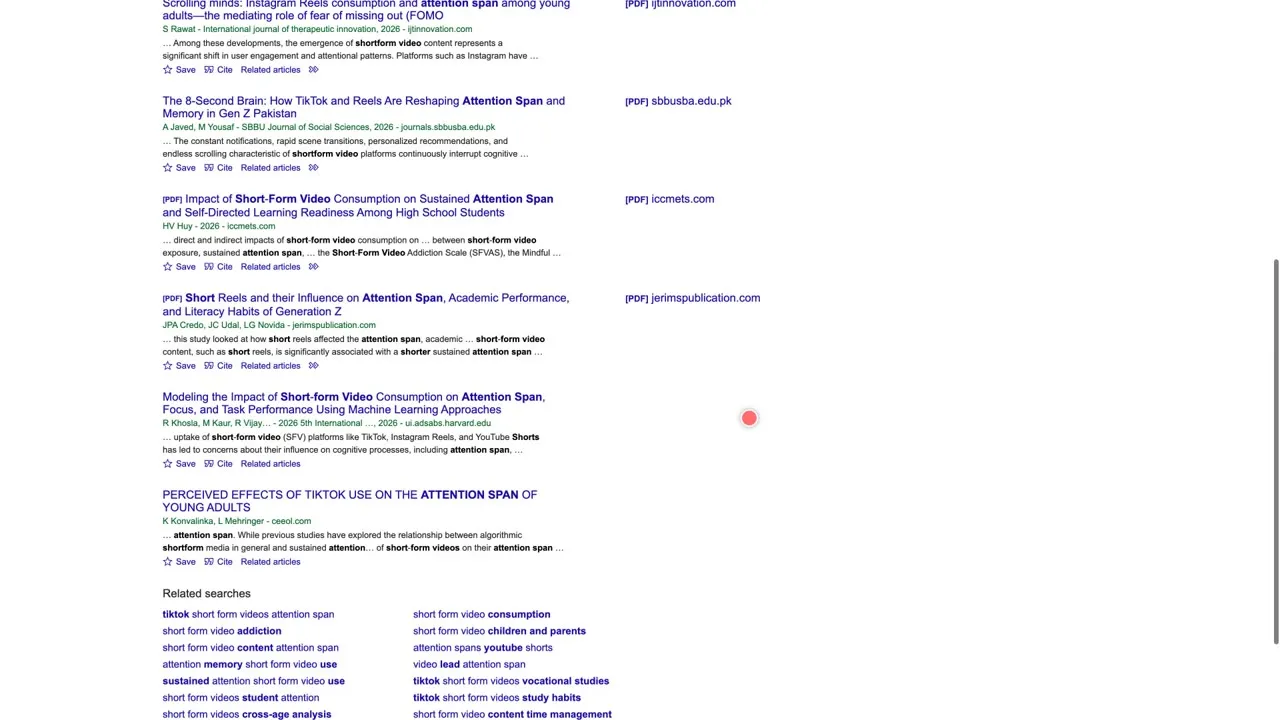
Searches academic papers. Results show the authors and the year, with a Cite button, Cited by counts, and links to PDFs on some papers. You can sort by relevance or by date. When you want a real study behind a claim, this is where to look.
Link: scholar.google.com
6. Wikipedia
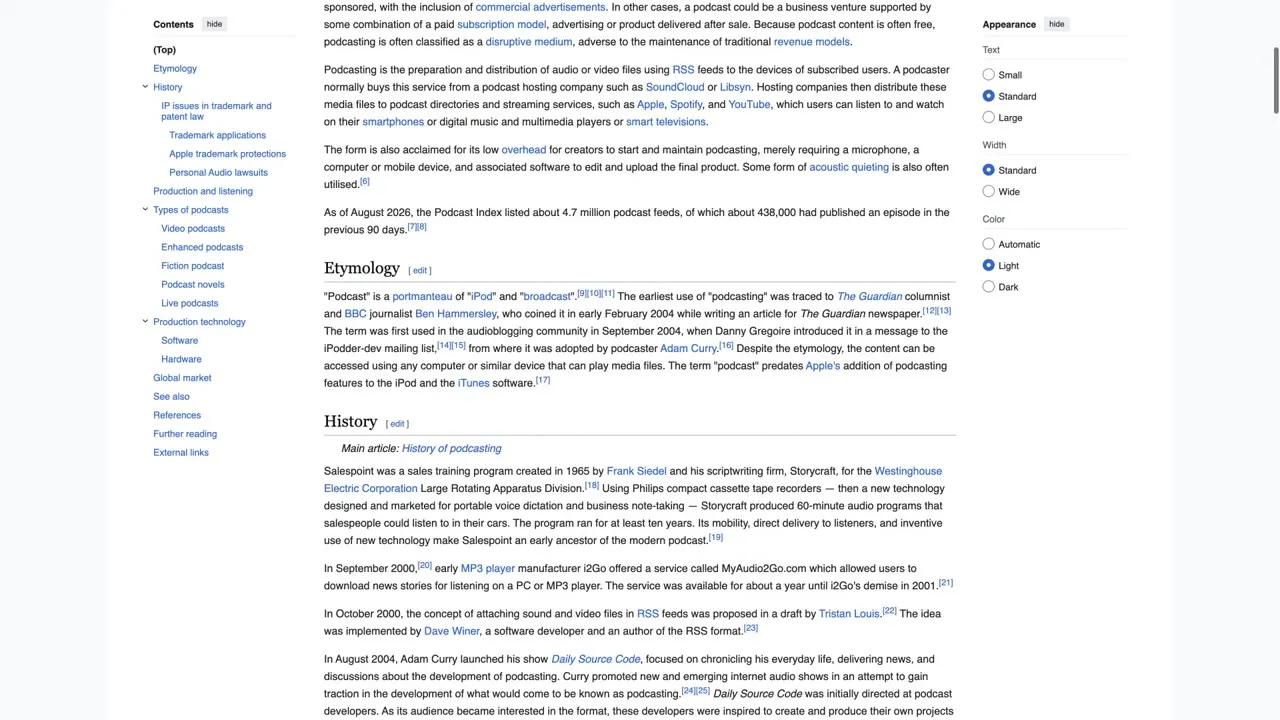
Search a topic and the article gives you an overview, a contents menu on the side and numbered footnotes in the text. Use it to learn the basics fast, then follow the footnotes to the original sources instead of quoting the article itself.
Link: wikipedia.org
Step 3: Write the script
7. Hemingway Editor
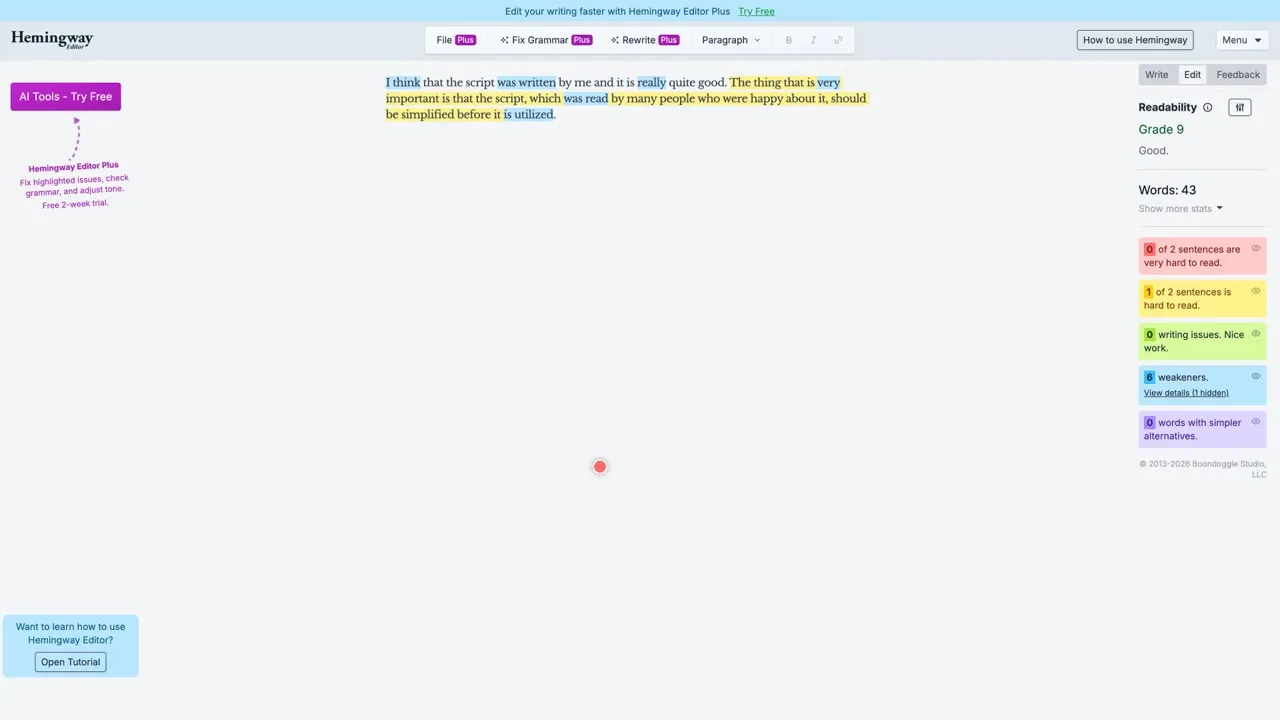
Paste your script into the free editor and it grades your reading level and counts your words. Yellow marks a hard sentence, red a very hard one, blue weak phrases, and purple suggests a simpler word. The Fix Grammar and Rewrite buttons are marked Plus, which means paid. The free editor still works, with no account.
Link: hemingwayapp.com
8. LanguageTool
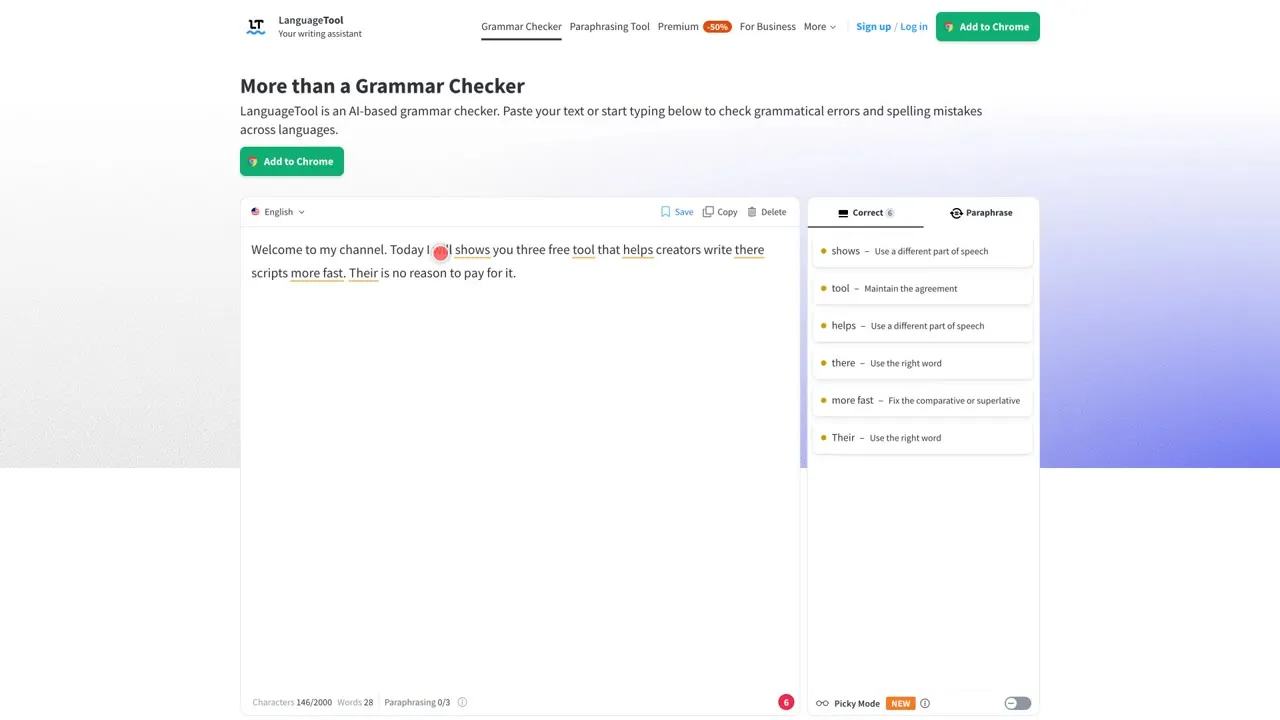
Paste your text and it underlines spelling and grammar mistakes, with suggestions on the right. It supports many languages, including several versions of English, and Picky Mode adds more style suggestions. A free account is optional and adds saved texts and a personal dictionary.
Link: languagetool.org
9. WordCounter
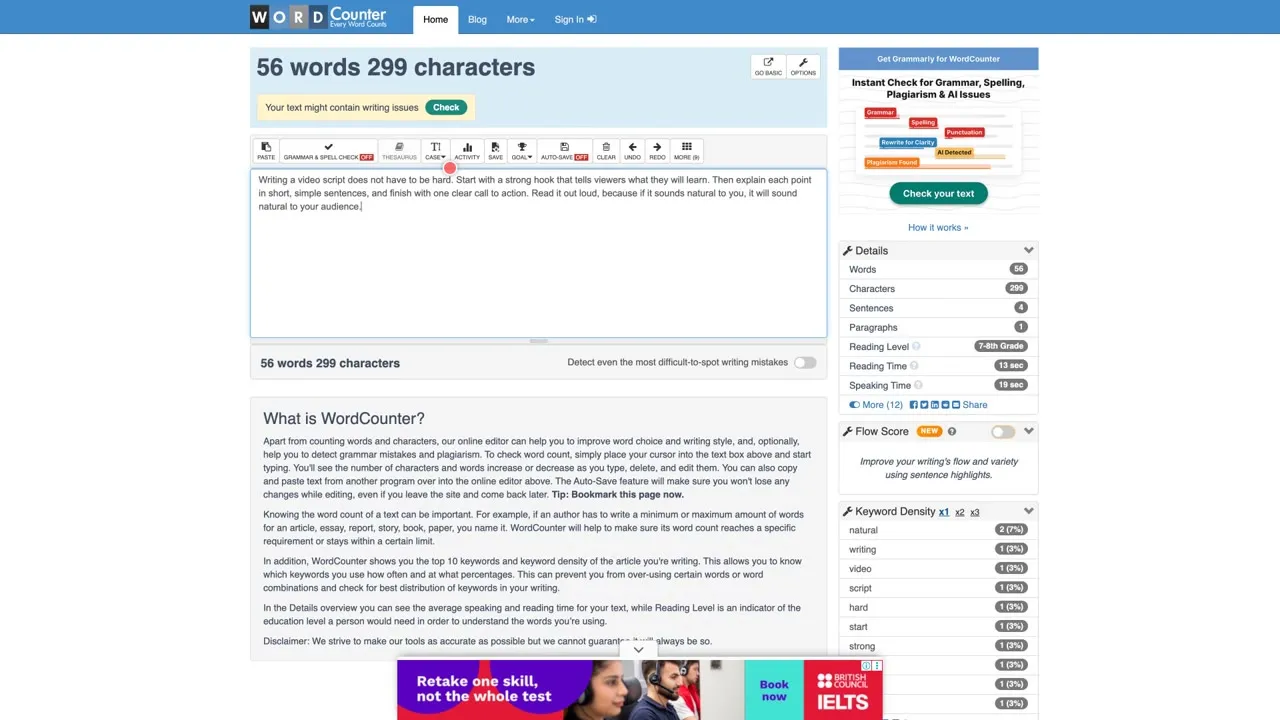
Type or paste your script and it counts words and characters as you go. The details panel shows reading time, speaking time and reading level, and it lists your top ten keywords with their density. That tells you how long a script will run and which words you repeat too often.
Link: wordcounter.net
10. Thesaurus.com
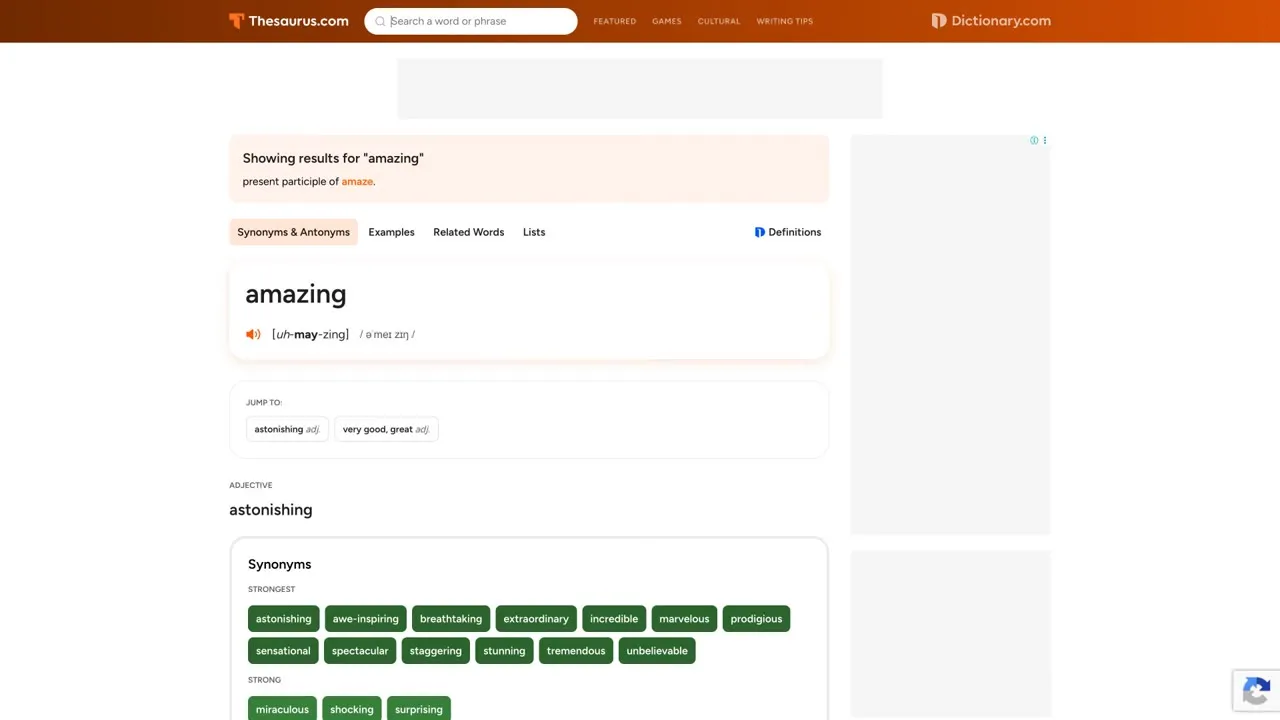
Type a word like “amazing” and you get synonyms and antonyms organised by meaning. Use it when you catch yourself repeating the same word in a script. The site shows ads, so keep your eyes on the results.
Link: thesaurus.com
11. Title Case Converter
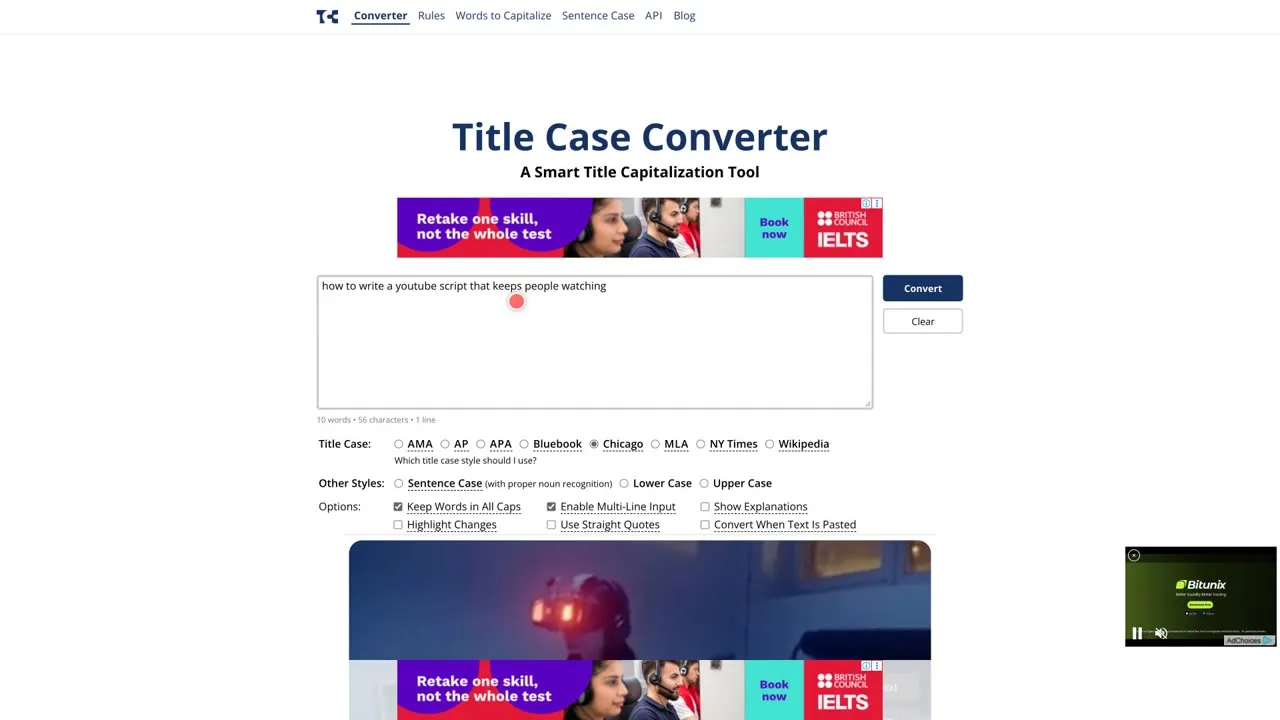
Type a title and it capitalises it in the style you pick, such as AP, APA, Chicago, MLA, NY Times or Wikipedia, with sentence case and lower case as extra options. The result appears below with a copy button, and it can show an explanation for each capitalisation. Handy for video titles and chapter names.
Link: titlecaseconverter.com
Step 4: Deliver it
12. CuePrompter
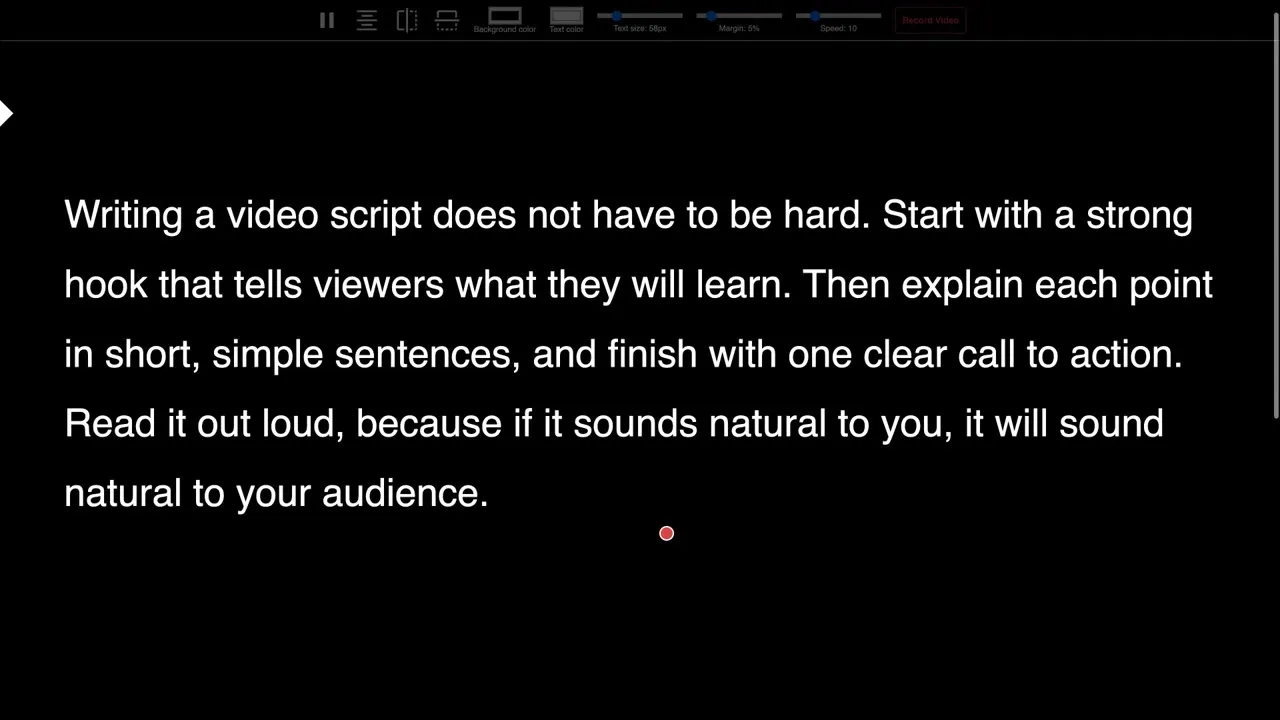
A free online teleprompter. Paste your script, press start, and the text scrolls in your browser. You can change the scroll speed and text size, and mirror the text for a teleprompter-glass setup. The site says there is no sign-up and no download. Practise your script out loud before you record.
Link: cueprompter.com
4 tips for a better script
- Write for the ear. Short sentences are easier to say and easier to follow.
- Read it out loud once before you record, and mark every place where you stumble.
- Check each fact against its original source, not just a summary.
- Keep a list of your sources, so you can link them in your video description.
Which one should you start with?
Pick one tool from each step and try them on your next video. If you only have time for three, use Google Trends to choose the topic, Hemingway Editor to tighten the script, and CuePrompter to practise it.
Free tools and their limits can change, so check each site’s own pages before you rely on one for something important.