10 Free Tools to Set Up Your Creator Studio
10 free browser tools for setting up a creator studio: Webcam Test, Online Mic Test, Speedtest, CuePrompter, Pomofocus, World Time Buddy, Online Stopwatch, a social image sizes guide, favicon.io and QRCode Monkey. What each does, what is free, and the catch.
On this page
Setting up a creator studio usually means checking your camera and mic, testing your internet, writing a script you can read on screen, planning your time, and getting the small publishing assets right. A lot of that can be done in a browser tab, for free, without installing anything.
Here are 10 free tools for exactly that. For each one I opened the site, did what I could do safely, and read its own about, privacy, terms or pricing pages. Where a page did not say something, I wrote “unclear” instead of guessing. I never created an account, never signed in, never downloaded a file and never clicked an ad.
Two honest limits up front. Webcam Test and Online Mic Test need permission to use your camera and microphone, and I did not allow either. So I can show you the pages as they are and what they say, but I cannot tell you how well they measure a real camera or mic. And number 8 is a free guide, not an app. I say so where it comes up.
Free tiers and limits change, so check the site’s own pages before you rely on one for client work.
At a glance
| # | Tool | Good for | Free to use? | Main catch |
|---|---|---|---|---|
| 1 | Webcam Test | Checking your camera | Described as “a free tool” | Needs camera permission (not tested); ads |
| 2 | Online Mic Test | Checking your microphone | Yes, no sign-in needed to open it | Needs mic permission (not tested); big ads |
| 3 | Speedtest | Internet speed | Runs with no sign-in; price not stated on the page | Ads and app promos; the page shows your IP and provider |
| 4 | CuePrompter | Free teleprompter | “Free for any use”, no watermarks | App pop-up; I skipped the Record Video button |
| 5 | Pomofocus | Pomodoro focus timer | Yes, with a paid Premium plan | Terms say personal, non-commercial use |
| 6 | World Time Buddy | Time zones and meeting times | Yes; the page calls signing in free | Unclear what is saved without signing in |
| 7 | Online Stopwatch | Stopwatch and timers | Free for private and commercial use | Ad supported; Premium removes ads |
| 8 | Sprout Social image sizes guide | Social image sizes | Free to read | It is an article; two numbers inside it differ |
| 9 | favicon.io | Website favicons | Free | Ads; check font and emoji licenses |
| 10 | QRCode Monkey | QR codes | “100% free”, including commercial use | Static codes can’t be edited |
1. Webcam Test
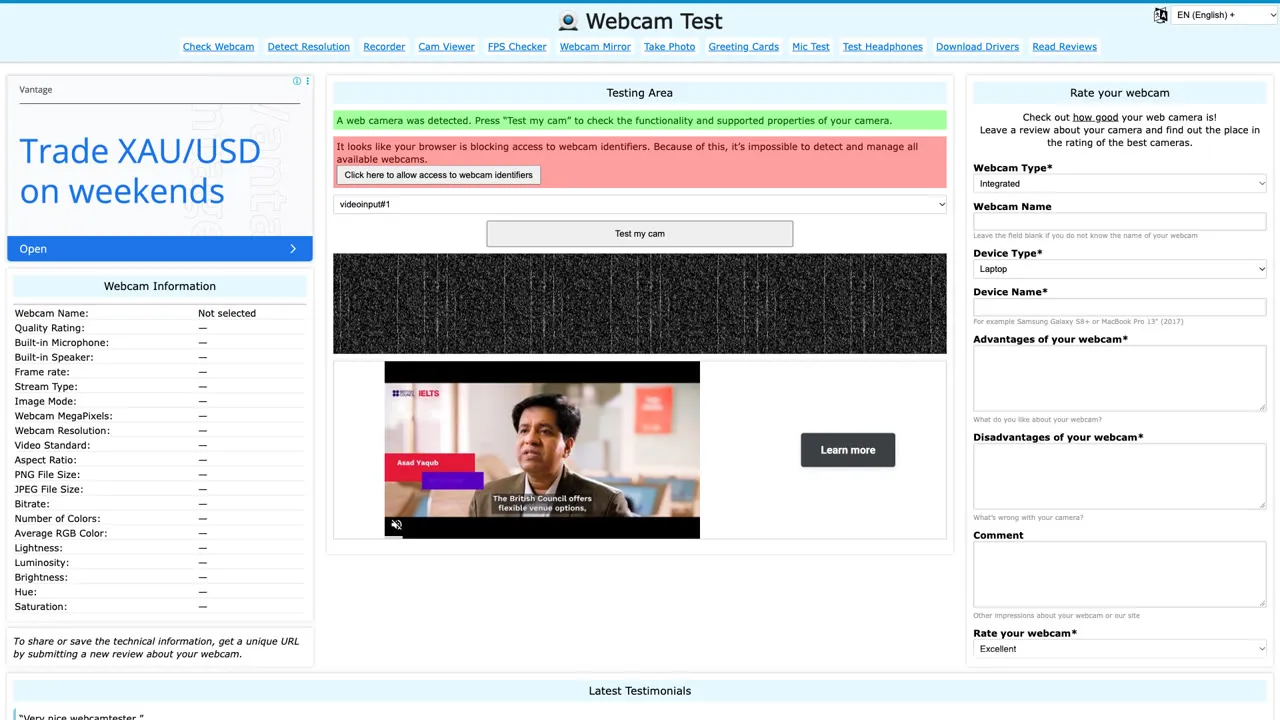
Webcam Test is a page that checks your camera in the browser. The page says that pressing “Test my cam” makes the browser ask for permission to launch the camera, and that after you allow it you see the video and the camera’s properties. The Webcam Information panel is where those details would appear: name, quality rating, frame rate, resolution, megapixels, bitrate and more. I did not press the button, so every row was still empty when I recorded it, and the page showed a notice that my browser was blocking access to webcam identifiers.
The privacy section says the testing is done in the browser, the data stays in your device memory, nothing is saved until you post a review, and it does not store photos taken with your webcam. The review form is optional. The page has ads, including a large ad box in the middle of the testing area.
Catch: I did not test a live camera, so I can’t vouch for the readings. Ads on the page.
Link: webcamtests.com
2. Online Mic Test
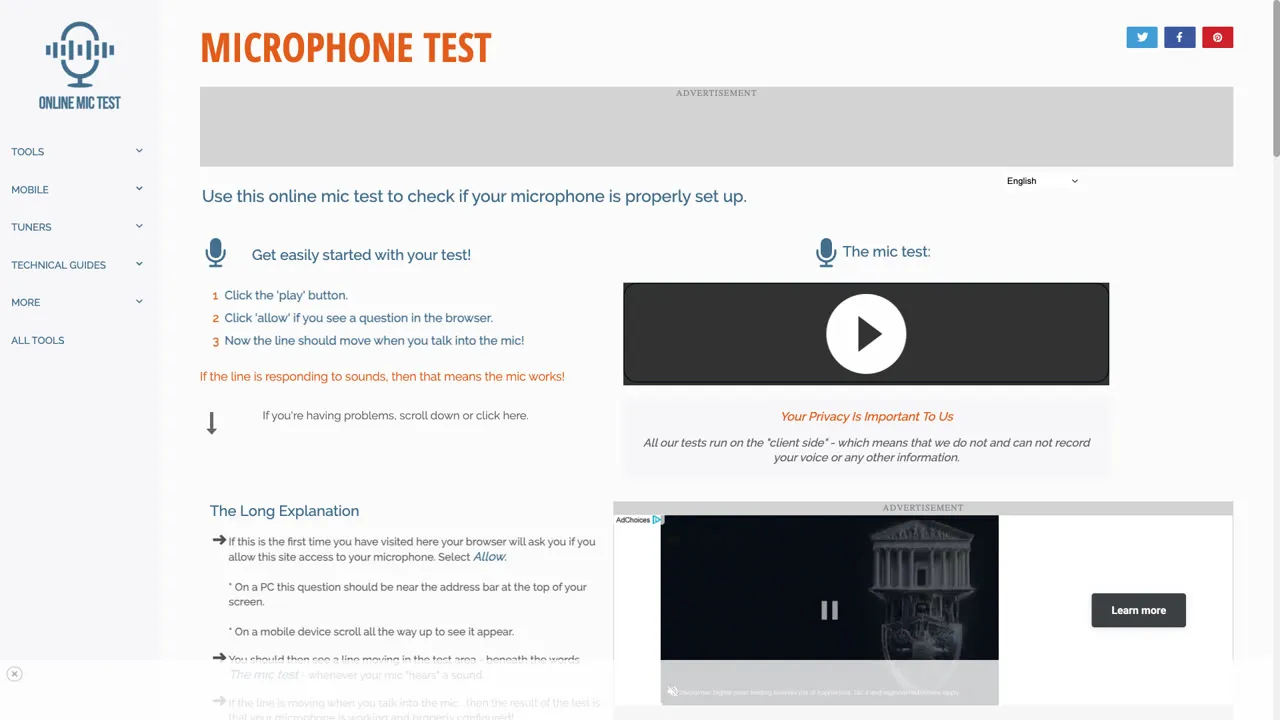
The instructions on the page are three steps: click play, click allow if the browser asks, and the line should move when you talk. If the line responds to sound, the page says, the mic works. I did not click play, because that would ask for microphone access, so I can’t show you the line moving.
The page includes a privacy note saying all its tests run on the client side, so it says it does not and can not record your voice or other information. Below the test there is a long troubleshooting guide with steps to try if you see no line.
The page is ad heavy: banner ads around the test and a sticky ad at the bottom of the screen. Don’t click them by accident.
Catch: I did not test a real microphone. Large ads.
Link: onlinemictest.com
3. Speedtest
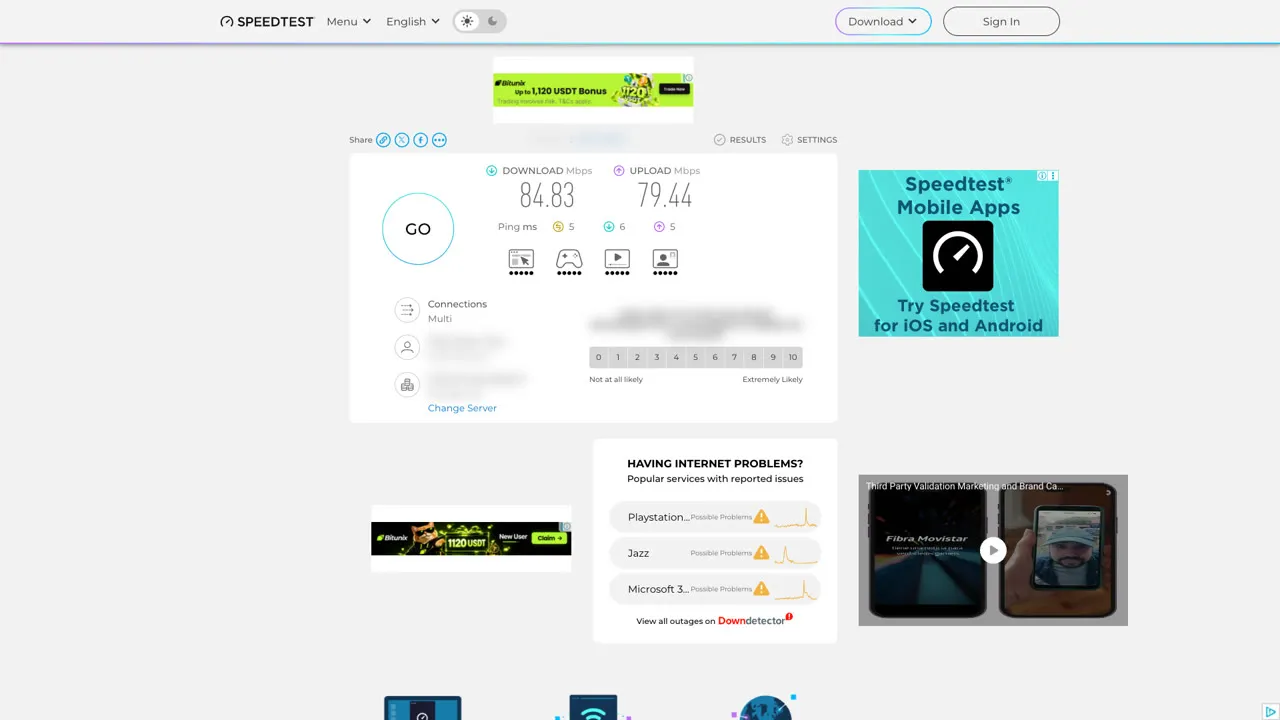
Speedtest by Ookla runs from one big GO button. I pressed it, with no sign-in, and after about half a minute it finished with download, upload and ping figures, plus extra latency readings. I waited for the whole run, and I cut the waiting part out of the video.
The page shows your internet provider, your IP address and the test server, and the finished result has a Share option and a result ID. I blurred those in my recording, and you may want to do the same before sharing a screenshot. The page also has display ads and promotions for Speedtest’s own apps. I did not find a price or “free” statement on the test page itself, so I only say that it ran without an account.
Fast.com, from Netflix, is a cleaner backup. It starts testing as soon as it opens and shows a single big number. It has a “Show more info” button, which I did not click.
Catch: ads and app promos, and personal details on screen.
Link: speedtest.net | backup: fast.com
4. CuePrompter
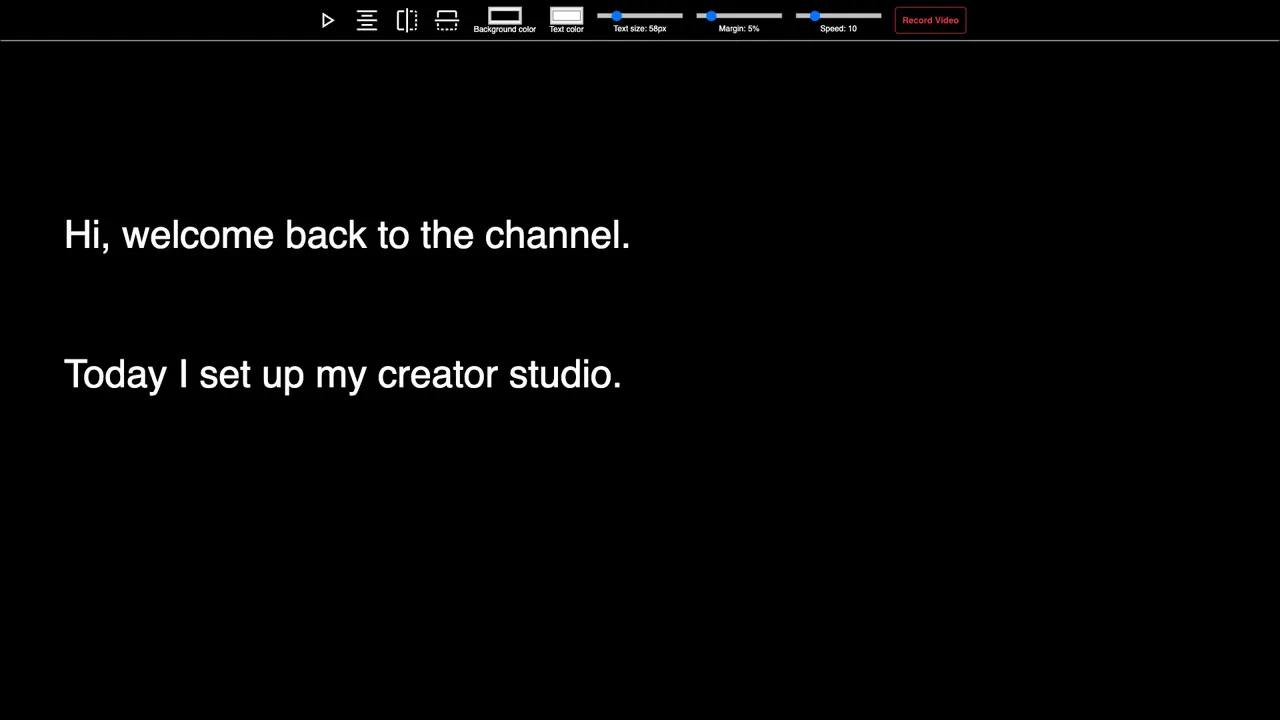
CuePrompter is a free browser teleprompter. I pasted a two-line script into the box, pressed Start new prompter, and the script opened as large white text on a black page. The toolbar has play, alignment and flip buttons, background and text color pickers, and sliders for text size, margin and speed.
The home page says it is “free for any use (both commercial and non-commercial)”, with no signup, no downloads, no watermarks and no limits. It also lists mirror mode for physical teleprompter glass.
There is a Record Video button on the prompter page. I did not press it, because I was not granting camera access and the page does not say exactly what it records. The prompter page also showed a pop-up promoting the maker’s own Teleprompter app, which closes with an X. The home page has a cookie notice at the bottom, and in my recording I hid it with a style tweak instead of clicking Got it, so it is not visible there.
Catch: the app pop-up. I did not test Record Video.
Link: cueprompter.com
5. Pomofocus
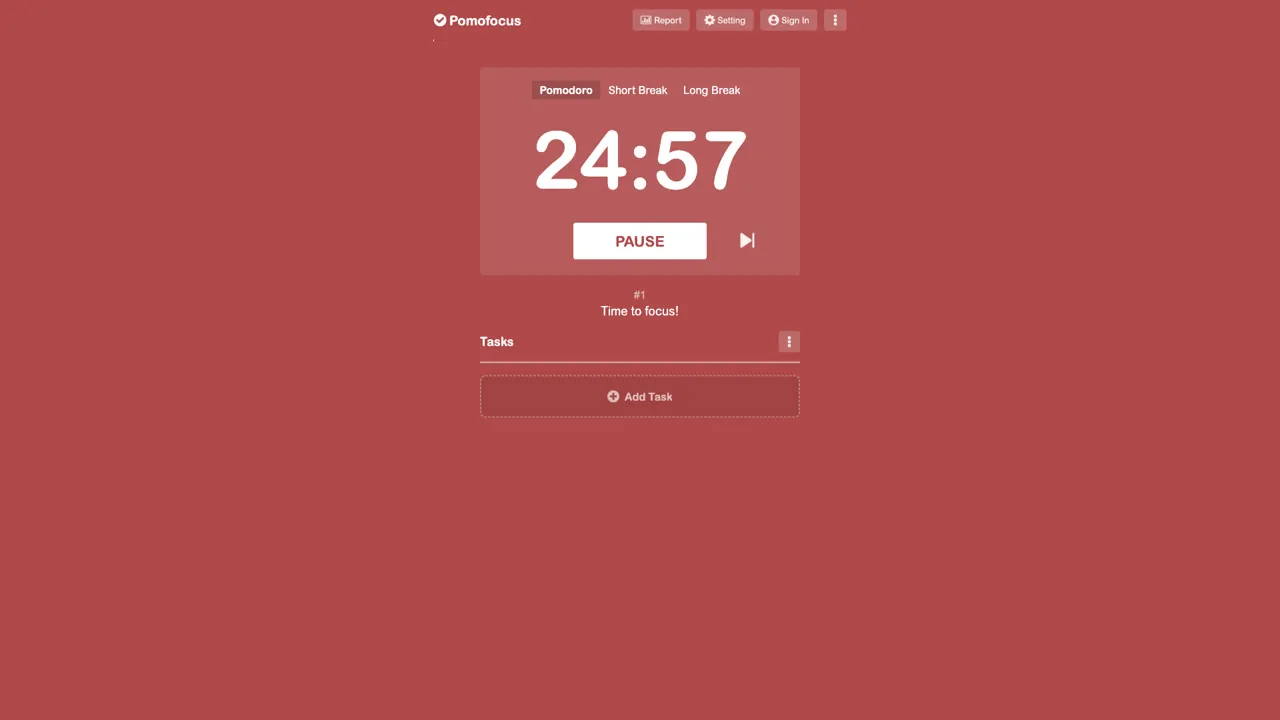
Pomofocus is a Pomodoro timer. I pressed Start and it counted down from 25:00. The Setting panel lets you change the Pomodoro, short break and long break lengths, auto-start breaks, the alarm sound and a focus sound. I also added a task to the list without signing in.
The home page lists basic features such as templates and reports, and a Premium list that includes projects, yearly reports, CSV download, Todoist and webhook integration, no limit on templates and “No Ads”. The important line for creators is on the terms page, last updated September 8, 2023: “You may use Pomofocus for personal, non-commercial purposes.” If you want to use it in a business, read that page first.
Catch: personal, non-commercial use per the terms. Premium is where “No Ads” lives.
Link: pomofocus.io | terms
6. World Time Buddy
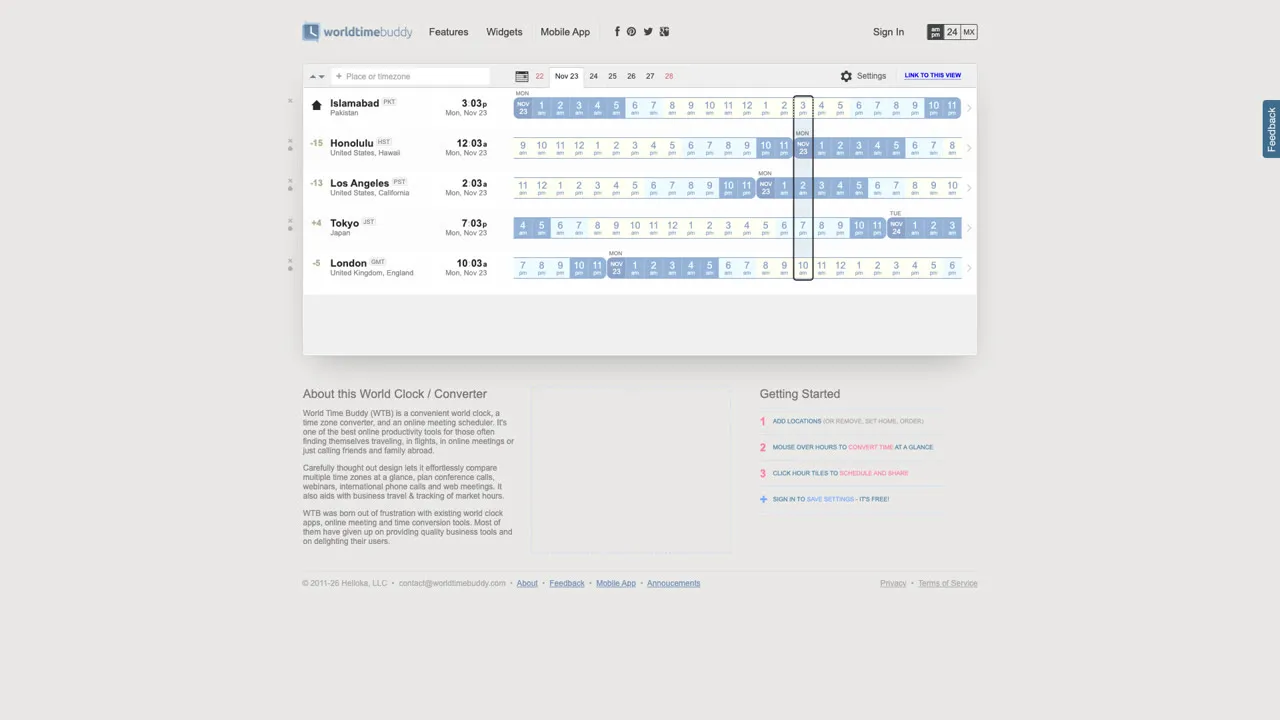
World Time Buddy lines up time zones so you can find a good time for a call, a livestream or a premiere. I typed Tokyo into the place box and pressed Enter, then did the same with London, and each city got its own row. Hovering over an hour tile highlights the same moment in every row.
The page’s Getting Started steps say to sign in to save settings and call that “free”. I did not sign in, so what is kept between visits without an account is unclear. The site’s About page says the time zone data comes from the standard TZDATA database. There is an ad on the page.
Catch: what is saved without an account is unclear, and there are ads.
Link: worldtimebuddy.com
7. Online Stopwatch
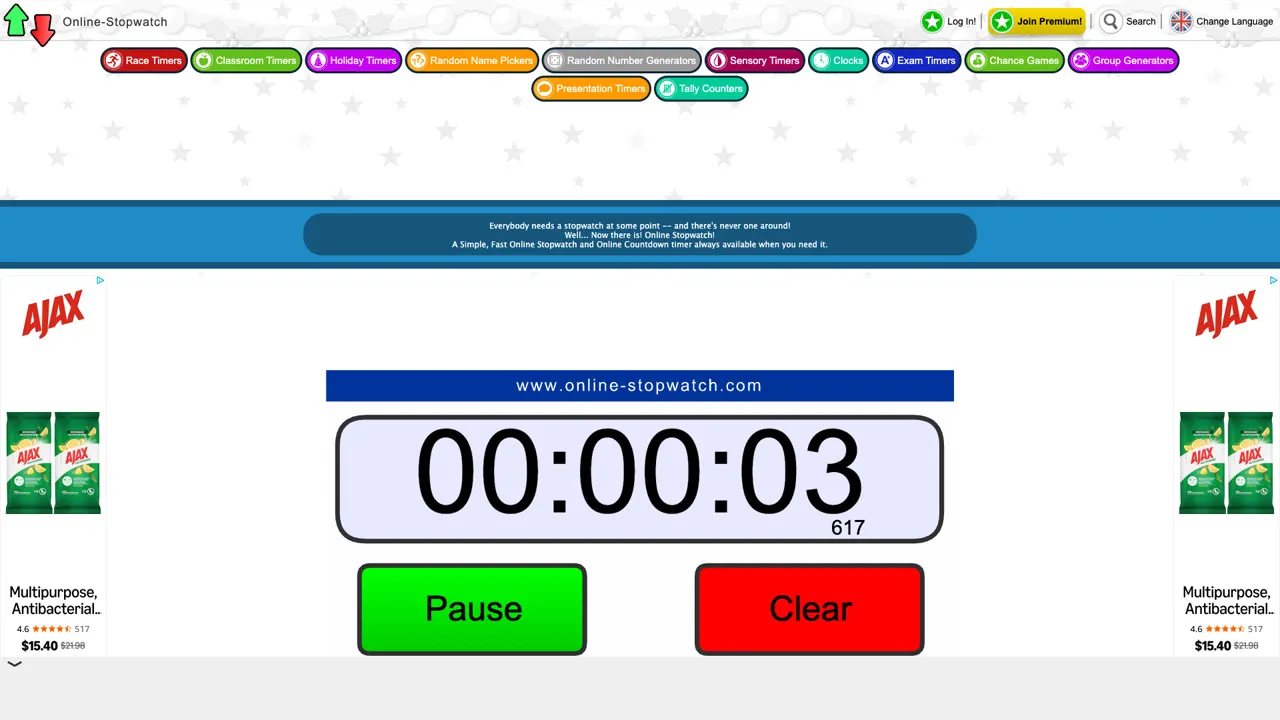
Online Stopwatch is exactly what the name says. On the home page you pick the green Stopwatch arrow (the red one is a Countdown), press Start, and it counts up in hours, minutes, seconds and milliseconds.
The site is ad supported. Its Premium page lists “No Ads” and other extras, with a one-month trial for $10, a 12-month plan for $24 a year and a group account for $96 a year, all shown in USD. The terms page says “Our tools are FREE to use for private and commercial use”, and that you don’t need to ask permission. The Premium page has an email and password form. I did not fill it in.
Catch: lots of ads on the free version, and the home page is themed for the season.
Link: online-stopwatch.com | premium | terms
8. Sprout Social image sizes guide
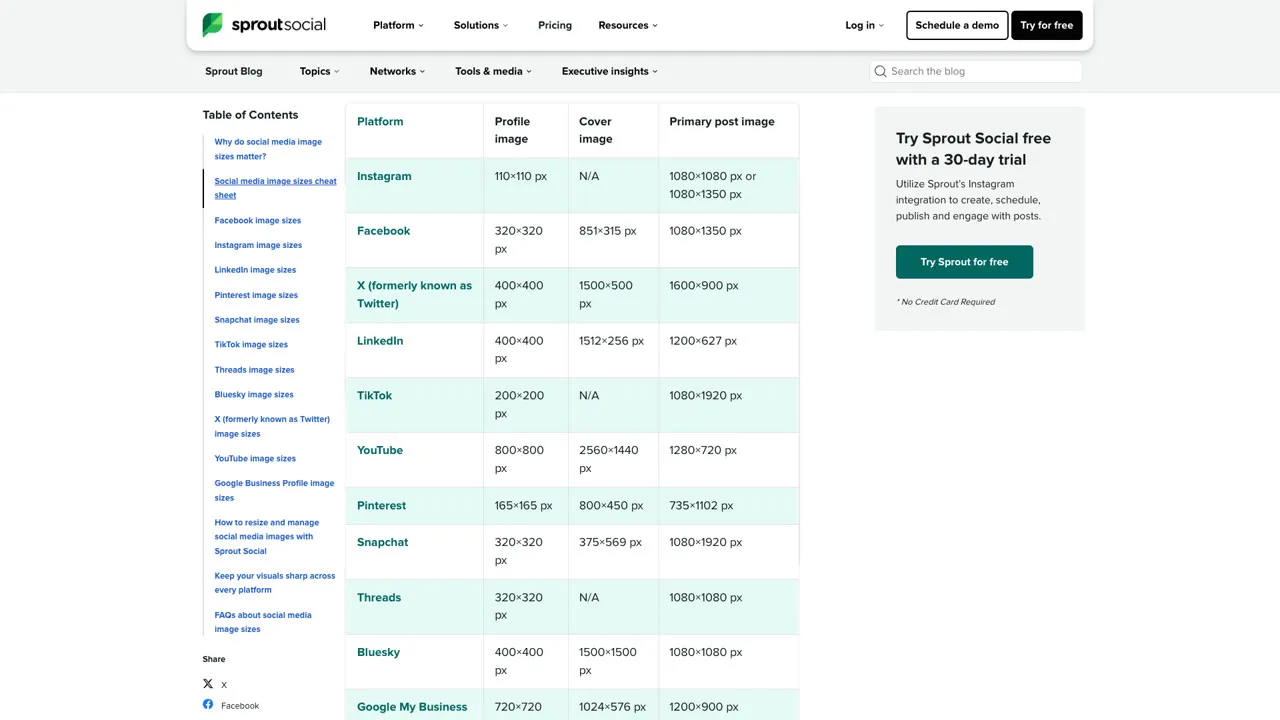
This one is not a tool, it is an article: Sprout Social’s guide to social media image sizes, which the page says was last updated on November 2, 2026. It is free to read, and the table near the top lists profile, cover and post sizes for Instagram, Facebook, X, LinkedIn, TikTok, YouTube, Pinterest and more. The guide also says 1080 by 1080 pixels is the safest cross-platform size.
I read it with YouTube in mind and found two places where numbers inside the same guide differ. The table lists YouTube’s primary post image as 1280 by 720, while the YouTube thumbnail section recommends 3840 by 2160 for desktop video thumbnails (both 16:9) and says the minimum width is 640 pixels. And the channel banner safe area is written as 1235 by 338 in one sentence and 1235 by 388 in a list. I would double check against YouTube’s own Help Center, which the guide itself points to.
It is written by a paid software company, so expect promos for a 30-day Sprout trial and its free image resizing tool, Landscape. I did not try that tool.
Catch: it is a guide with promos, not an app, and two numbers conflict.
Link: Sprout Social image sizes guide
9. favicon.io
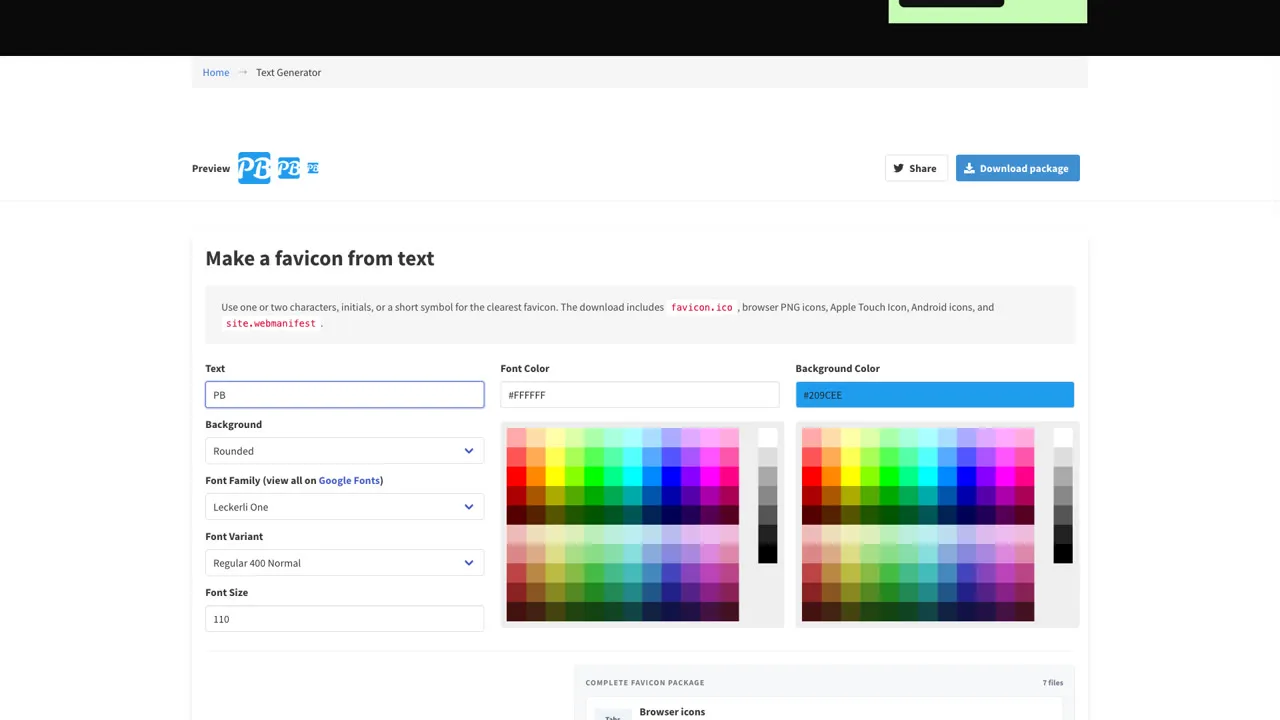
favicon.io makes the small icon that shows in a browser tab. The home page says you can create a favicon from text, an image, an SVG or emoji and download a complete icon package. For images, it says PNG, JPG, BMP or WebP stay in your browser. I used the text generator: I typed two letters and the preview updated, with options for font color, background color, background shape and font.
The Download package button is where you get the files. The page lists favicon.ico, 16 and 32 pixel PNGs, an Apple Touch Icon, two Android icons and a site.webmanifest. I did not click it, because I don’t download files in testing.
The terms page says favicon.io is not responsible for images users generate, and that you should make sure you have permission to use the content. It says the fonts come from Google Fonts and tells you to review the font’s license, and that the emoji graphics come from Twemoji, licensed under CC-BY 4.0, which you should also review. The pages have ads.
Catch: ads, and check the font or emoji license before you ship the icon.
Link: favicon.io | terms
10. QRCode Monkey
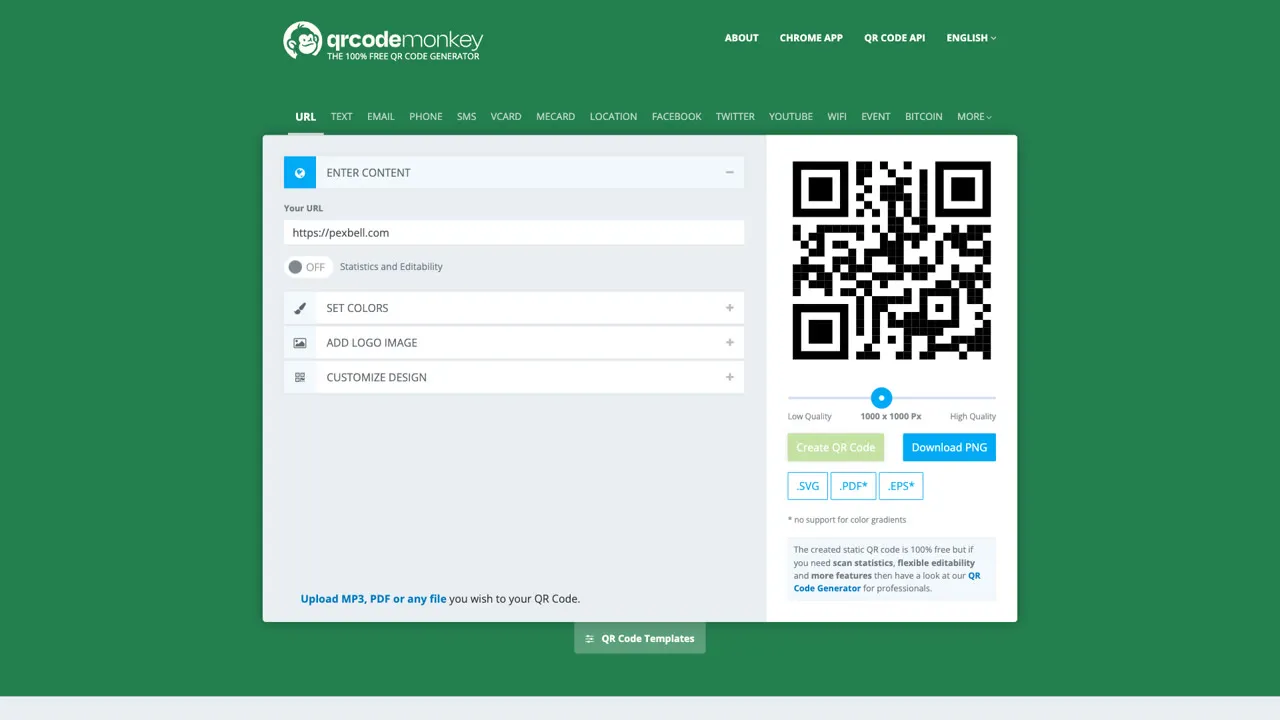
QRCode Monkey makes QR codes with custom colors and logos. I typed a link into the URL tab, pressed Create QR Code, and opened the Set Colors section. There are tabs for text, email, phone, Wi-Fi, vCard and more, a size slider, and download buttons for PNG, SVG, PDF and EPS. A note says PDF and EPS do not support color gradients.
The page calls itself “the 100% free QR code generator” and says the codes work forever, do not expire and have no scan limits. It also says they are free for commercial use. The catch is that these are static QR codes: you can’t edit them afterwards. Dynamic codes with scan statistics are part of a separate professional platform that the page promotes. I did not download anything, and the page has a cookie banner that I hid in my recording instead of accepting.
Catch: static codes can’t be edited, so double check the link before you print it.
Link: qrcode-monkey.com
Tools I left out
I did not drop any of the ten, but I did leave things out of the tests on purpose. I did not allow camera or microphone access, so numbers 1 and 2 are shown as empty states and with what their pages say. I did not sign in or download anything anywhere. I did not click Fast.com’s “Show more info” or Speedtest’s Share option, since they can show details about your connection. And I only mention Fast.com as a backup, so it is not one of the ten.
Before you rely on any of these
- Check permissions: camera and mic tests need you to allow access in the browser. Allow it only for sites you trust, and revoke it afterwards.
- Hide personal details (IP address, provider) before you share a speed test screenshot.
- Read the terms if you will use a tool in client work or a business. Pomofocus is the one here that says personal, non-commercial.
- Don’t click the ads or download buttons that are really upsells.
Limits and prices change, so treat this page as a snapshot of what each site said on the day I checked.